
How do I set up and customise Art Mode on the Samsung Frame TV (including brightness and motion sensor)?
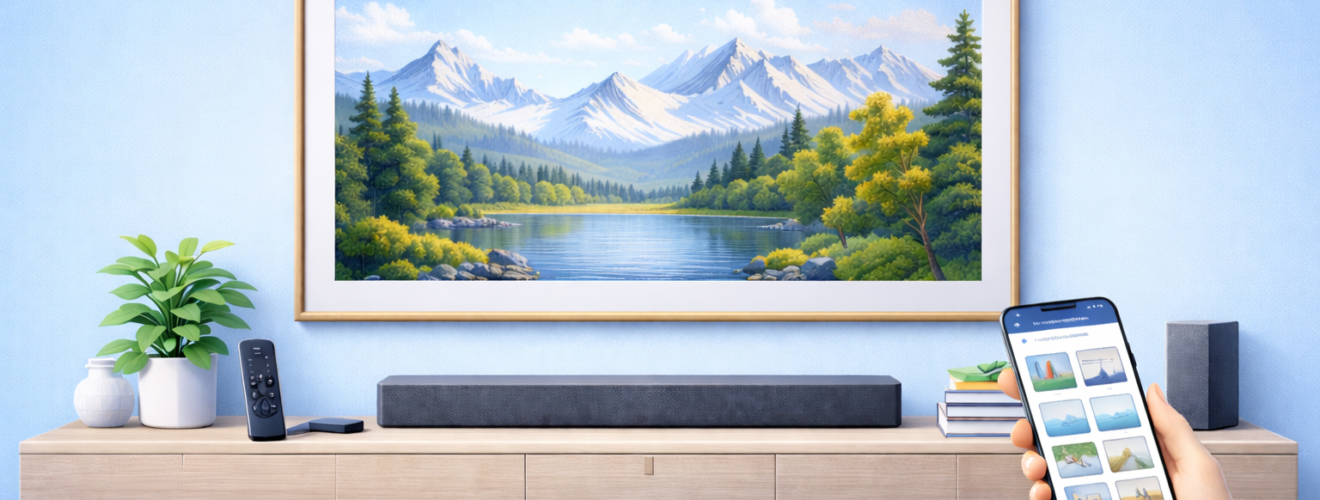
Applies to: Samsung The Frame TV (models with Art Mode, One Connect Box and motion sensor)
Last updated: 27 January 2026
Problem
You bought the Samsung Frame TV specifically for Art Mode, but it does not quite look right. Artwork may appear too bright or too dim, Art Mode may not turn on automatically, or the TV stays on longer than expected. You may also be unsure how the motion sensor works or how to adjust settings so the screen genuinely looks like framed art rather than a glowing television.
Solution
Art Mode on the Samsung Frame TV is highly configurable. By enabling Art Mode correctly, choosing suitable artwork, adjusting brightness and colour tone, and configuring the motion and light sensors, you can make the screen blend naturally into your room. Once set up properly, the Frame will switch between TV mode and Art Mode automatically and display artwork at a realistic brightness based on room lighting.
Step-by-step instructions
Enable Art Mode for the first time
- Turn on the Samsung Frame TV using the remote.
- Press the Art Mode button on the remote, or press Home and navigate to Art.
- The TV will switch from normal TV viewing to Art Mode.
- If prompted, sign in with or create a Samsung account to access Art Store features.
- Confirm that Art Mode loads and displays artwork or sample images.
Choose artwork for Art Mode
- In Art Mode, browse the available artwork categories such as classic art, photography or modern designs.
- Select a piece of artwork to preview it on screen.
- Choose whether to display a single artwork or create a rotating collection.
- If you are subscribed to the Art Store, download artwork directly to the TV for offline use.
- Confirm the artwork fills the screen correctly without stretching or cropping.
Adjust brightness and colour tone for realism
Brightness is the most important setting for making Art Mode look like real art.
- While in Art Mode, open Settings within Art Mode.
- Locate Brightness or Art Mode Brightness.
- Enable Auto Brightness so the TV adjusts based on room lighting.
- If the image still looks too bright or dull, switch to Manual Brightness.
- Lower the brightness until the artwork no longer looks like it is glowing.
- Adjust Colour Tone or Warmth to match the lighting in the room. Warmer tones often look more natural in living spaces.
- Step back and view the artwork from your usual distance to judge realism.
If the artwork looks perfect up close but too bright from across the room, reduce brightness further.
Configure the motion sensor correctly
The motion sensor controls when Art Mode turns on or off based on room activity.
- Open Settings > General > Power and Energy Saving (menu names may vary by model).
- Find Motion Sensor or Art Mode Motion Detection.
- Enable the motion sensor.
- Set the delay time for how long Art Mode stays on after no movement is detected.
- Choose a shorter delay to save energy or a longer delay if the TV turns off too quickly.
- Walk in and out of the room to test that Art Mode activates and deactivates as expected.
The motion sensor works best when the TV is mounted at eye level and not blocked by furniture.
Adjust light sensor behaviour
The light sensor helps the Frame match room brightness.
- In Art Mode settings, locate Light Sensor or Brightness Sensor options.
- Make sure the sensor is enabled.
- Check that nothing is blocking the sensor on the TV frame.
- Test Art Mode during different times of day to confirm brightness adjusts smoothly.
- If brightness jumps suddenly, reduce the sensitivity or switch to manual brightness.
Control when the TV enters Art Mode
- Open Settings > General > Power and Energy Saving.
- Enable Auto Power Off or Art Mode on Power Off options if available.
- Confirm that turning off the TV switches it into Art Mode rather than a black screen.
- Use the remote power button to test the behaviour.
This allows the TV to behave more like framed artwork when not actively watching content.
Optional methods or tools
- Art Store subscription
A subscription provides access to a wide range of professionally curated artwork that is optimised for the Frame’s display. - Custom mat and frame styles
Within Art Mode, you can add digital mats and choose frame styles that complement your physical bezel. - SmartThings app
Use the SmartThings app on your phone to manage Art Mode, change artwork and adjust settings without using the TV remote.
Best practices or tips
- Lower brightness more than you think. Real artwork does not emit light, so dimmer settings usually look better.
- Match colour tone to your room lighting. Warm lighting pairs best with warmer colour settings.
- Keep the sensor area clean and unobstructed so brightness and motion detection work properly.
- Avoid placing strong light sources directly above or below the Frame, as this can confuse the light sensor.
- Test Art Mode at night and during the day to find a balance that works in all lighting conditions.
- Revisit settings after changing rooms, wall colour or lighting, as these affect how artwork appears.
Art Mode is what makes the Samsung Frame TV unique, but it needs careful tuning to look convincing. Once brightness, colour tone and sensor behaviour are adjusted, the display blends naturally into the room and no longer feels like a television that happens to show art. Spending time fine tuning these settings transforms the Frame from a novelty feature into a permanent part of your décor.
With the right artwork, sensible brightness levels and reliable motion sensing, the Frame switches seamlessly between entertainment and display. Whether you use it in a living room, hallway or bedroom, a properly configured Art Mode makes the TV disappear into the space when not in use. Rechecking settings seasonally or after lighting changes helps keep the illusion intact all year round.


