
Why is my computer not detecting my Dymo LabelWriter
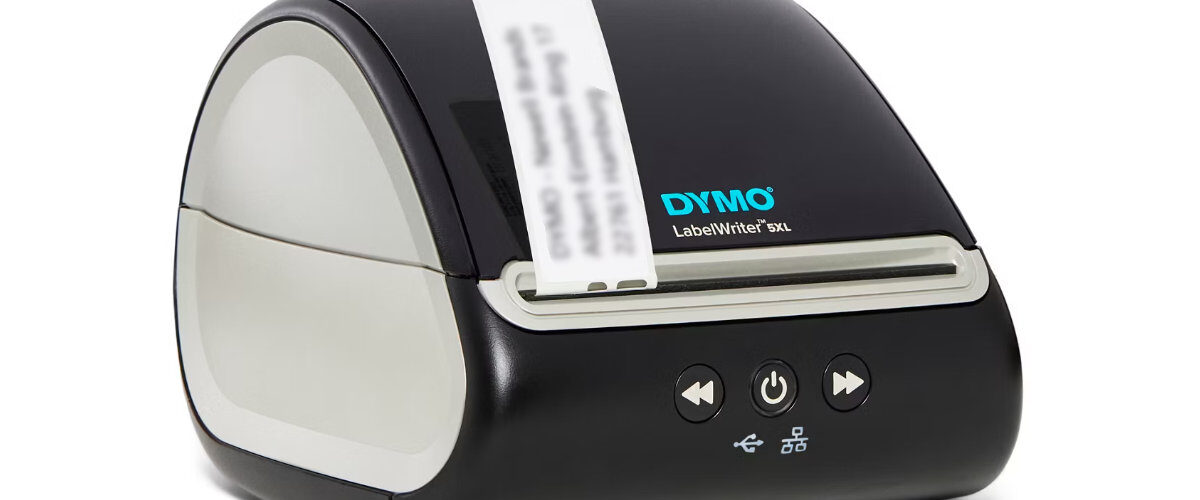
Applies to
Dymo LabelWriter 450 series, Dymo LabelWriter 550 series, Dymo LabelWriter 4XL, Dymo LabelWriter 5XL, Windows, macOS, Dymo Connect, and Dymo Label Software
Last updated
May 2026
Problem
Your computer is not detecting your Dymo LabelWriter printer. The printer may not appear in Dymo Connect, Windows Printers and scanners, macOS Printers and Scanners, Device Manager, or the printer list inside another application.
This can happen even when the printer has power and appears to be physically working. In many cases, the issue is caused by the USB connection, missing or incorrect drivers, a damaged printer entry, unsupported software, a faulty cable, or the printer being connected through a USB hub or docking station.
Solution
To fix a Dymo LabelWriter that is not being detected, start by checking the power and USB connection, then connect the printer directly to the computer, install or reinstall the correct Dymo software, remove old printer entries, and test with a different USB cable or port.
If the printer is detected by the operating system but not by Dymo Connect, the problem is likely software or driver related. If the computer does not react at all when the printer is connected, the problem is more likely to be the cable, USB port, power supply, or printer hardware.
Step by step instructions
Check that the LabelWriter has power
Before looking at software settings, check that the printer is powered on.
Make sure the power cable is firmly connected to the Dymo LabelWriter and plugged into a working wall socket. If the adapter has two cable sections, check both ends.
Look for a power or status light on the printer. If there is no light, try another wall socket. Also check that you are using the correct power adapter for your LabelWriter model, as using the wrong adapter can prevent the printer from working properly.
Check the USB cable connection
Make sure the USB cable is connected firmly to the back of the printer and to the computer.
Unplug the cable from both ends, then reconnect it. A loose USB connection can stop the computer detecting the printer, even if the printer itself has power.
If the cable feels loose, damaged, bent, or unreliable, try another USB cable.
Connect the printer directly to the computer
If the LabelWriter is connected through a USB hub, docking station, monitor USB port, keyboard USB port, or extension cable, disconnect it.
Plug the printer directly into a USB port on the computer.
This is especially important during troubleshooting. Dymo LabelWriter printers often behave more reliably when connected directly. A hub or docking station can sometimes provide an unstable connection, especially if several devices are connected at the same time.
Try a different USB port
Move the USB cable to another USB port on the same computer.
Wait a minute after connecting it. Windows or macOS may need time to detect and install the device.
If the printer is detected in one USB port but not another, the original port may be faulty, disabled, underpowered, or affected by a driver issue.
Restart the computer with the printer connected
Leave the LabelWriter powered on and connected directly by USB, then restart the computer.
After the computer restarts, wait for the operating system to finish loading, then open Dymo Connect and check whether the printer appears.
Restarting can help clear temporary USB detection problems, print service issues, and driver communication faults.
Install the correct Dymo software
If the printer is still not detected, install the correct Dymo software for your model and operating system.
Use Dymo Connect for most current LabelWriter setups. Some older models may work with Dymo Label Software depending on the printer and operating system.
Go to the official Dymo support page at:
https://www.dymo.com/support?cfid=user-guide
Download the correct software for Windows or macOS, install it, restart the computer, then reconnect the printer directly by USB.
Check Windows Printers and scanners
On Windows, open Settings.
Go to Bluetooth and devices, then Printers and scanners.
Look for your Dymo LabelWriter in the printer list. It may appear as the exact model name or as a generic Dymo printer entry.
If it appears in Windows but not in Dymo Connect, close and reopen Dymo Connect. If it still does not appear, remove the printer from Windows, restart the computer, and reconnect it.
Check Windows Device Manager
If the printer does not appear in Printers and scanners, open Device Manager.
Check sections such as Printers, Print queues, Universal Serial Bus controllers, and Other devices.
If you see an unknown device, failed device, or warning symbol after connecting the LabelWriter, Windows may be detecting the hardware but failing to load the correct driver.
Disconnect the printer, reinstall the Dymo software, restart Windows, then connect the printer again.
Remove old or duplicate Dymo printer entries
Old printer entries can stop the correct printer from appearing properly.
On Windows, go to Settings, then Bluetooth and devices, then Printers and scanners. Remove old, duplicate, or unused Dymo LabelWriter entries.
On macOS, go to System Settings, then Printers and Scanners. Remove old Dymo printers that are no longer used.
After removing old entries, restart the computer and reconnect the LabelWriter.
Check macOS Printers and Scanners
On a Mac, open System Settings, then Printers and Scanners.
Check whether the Dymo LabelWriter appears in the list. If it does not, choose Add Printer, Scanner, or Fax and wait to see if macOS detects it.
If the printer appears in macOS but not in Dymo Connect, remove it from Printers and Scanners, restart the Mac, reconnect the printer, and add it again.
Check macOS Privacy and Security settings
On newer versions of macOS, printer software may need permission before it can work correctly.
Open System Settings, then Privacy and Security.
Look for any message asking you to allow Dymo software, printer software, system extensions, or related components.
If there is a prompt, allow it, restart the Mac, and test the printer again.
Check whether the printer works on another computer
If the computer still does not detect the LabelWriter, test the printer on another computer if possible.
Install the Dymo software on the second computer, connect the printer directly by USB, and check whether it appears.
If the printer is detected on another computer, the original computer likely has a driver, USB, software, or operating system issue.
If the printer is not detected on any computer, the issue may be the USB cable, power supply, or printer hardware.
Try a different USB cable
A faulty USB cable can make the printer appear dead to the computer.
Use another suitable USB cable and connect the printer directly to the computer.
If the printer is detected immediately with a different cable, replace the old cable and continue using the working one.
Check for label or feed issues separately
Sometimes users think the computer is not detecting the printer because nothing prints, when the printer is actually detected but unable to feed labels.
Press the feed button on the printer.
If the printer feeds a label, the printer has power and the feed mechanism is working. The issue may still be driver, print queue, software, or label settings.
If the printer does not feed at all, check for a label jam, badly loaded roll, or internal obstruction.
Avoid unsupported network setups during testing
Most Dymo LabelWriter models are designed to connect directly to a computer by USB.
If you are trying to use the printer through printer sharing, remote desktop, a print server, a USB-over-network adapter, or a shared office setup, simplify the test first.
Connect the LabelWriter directly to one computer and confirm that it is detected locally. Once local printing works, you can troubleshoot sharing or network access separately.
Optional methods or tools
- Use Windows Printers and scanners to check whether the printer has installed.
- Use Windows Device Manager to identify unknown devices or driver warnings.
- Use macOS Printers and Scanners to add or remove the LabelWriter.
- Use macOS Privacy and Security settings to approve blocked printer software.
- Try another USB port to rule out a port problem.
- Try another USB cable to rule out a cable fault.
- Test the printer on another computer to separate printer faults from computer faults.
- Download the latest Dymo software from https://www.dymo.com/support?cfid=user-guide
Best practices or tips
- Install the Dymo software before connecting the printer if setting it up for the first time.
- Use a direct USB connection when troubleshooting detection problems.
- Avoid USB hubs, docks, and monitor USB ports until the printer is working reliably.
- Remove old or duplicate Dymo printer entries after reinstalling software.
- Restart the computer after installing or reinstalling printer drivers.
- Keep a known working USB cable available for testing.
- Check the exact LabelWriter model before downloading software.
- Test with Dymo Connect before using shipping platforms, browsers, or third-party label tools.
A Dymo LabelWriter not being detected by a computer is usually caused by a connection, driver, or software issue rather than a completely failed printer. The most useful checks are the simple ones: confirm power, use a direct USB connection, try another port, reinstall the correct Dymo software, and remove old printer entries.
Once the computer detects the LabelWriter correctly, you can move on to testing label printing, label size settings, Dymo Connect templates, address books, shipping software, and barcode labels. Fixing the detection issue first makes every other troubleshooting step easier because the printer needs to appear correctly before software and label settings can work reliably.


