
How do I set up my Razer Basilisk V3 X HyperSpeed for the first time (2.4 GHz dongle or Bluetooth)?
Applies to: Razer Basilisk V3 X HyperSpeed
Last updated: 30 October 2025
Problem
You want a clean first-time setup for the Basilisk V3 X HyperSpeed. You need to insert the battery, choose between 2.4 GHz HyperSpeed or Bluetooth, pair on Windows or macOS, and install software to customize buttons, DPI, polling, and profiles.
Solution
Install a fresh AA battery, decide which wireless mode suits your usage, then complete pairing on your operating system. For the lowest latency and most consistent performance, use the 2.4 GHz HyperSpeed receiver. For quick switching between devices and broad compatibility, use Bluetooth. After pairing, install Razer Synapse on Windows to customize the mouse.
Step-by-step instructions
1) Unbox and power on
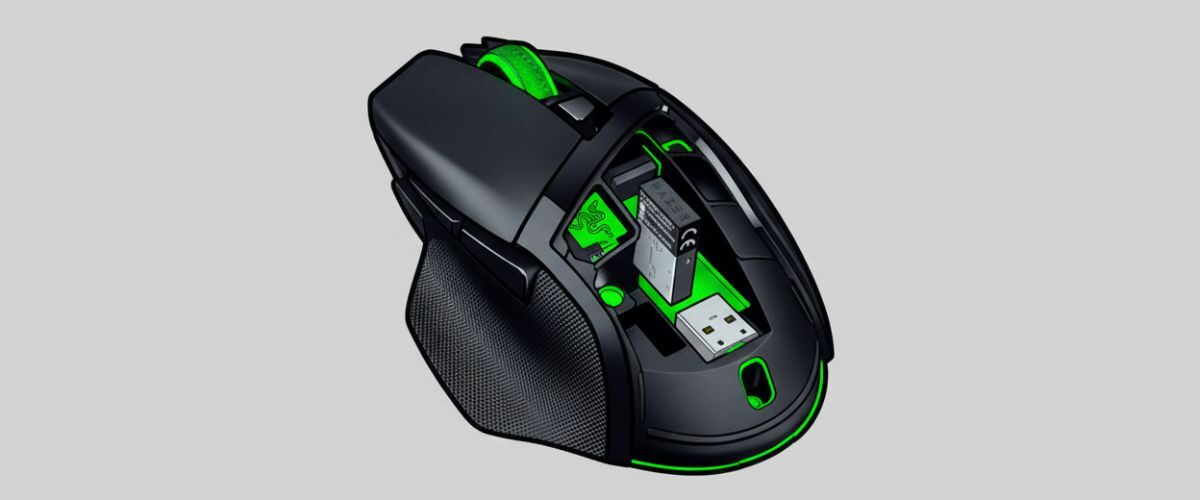
- Remove the top cover to access the battery compartment.
- Insert one AA battery, matching the polarity symbols.
- Reattach the cover firmly.
- Use the underside slider to select 2.4 for HyperSpeed or BT for Bluetooth. The center position powers the mouse Off.
2) Connect via 2.4 GHz HyperSpeed
- Plug the HyperSpeed USB receiver into a USB-A port on your computer.
- For best signal, use a short USB extension or front USB port to bring the receiver closer to the mouse.
- Set the mouse slider to 2.4. The mouse should connect automatically within a few seconds.
- If it does not connect, move the receiver to a different USB port, toggle the mouse Off and back to 2.4, or temporarily disconnect nearby wireless receivers to reduce interference.
- If you replaced the dongle or pairing was lost, use the official Razer mouse pairing utility to rebind the mouse to the receiver.
3) Connect via Bluetooth
Windows 10 or Windows 11
- Open Settings > Bluetooth & devices > Add device > Bluetooth.
- Slide the mouse to BT.
- Select Razer Basilisk V3 X HyperSpeed when it appears.
- If it does not appear, enter pairing mode by holding the two side buttons plus DPI Up and DPI Down for about three seconds until the status LED indicates pairing, then try adding the device again.
macOS
- Open System Settings > Bluetooth and turn Bluetooth On.
- Slide the mouse to BT and choose the mouse from the list.
- If it is not listed, re-enter pairing mode using the same button combination as above, refresh Bluetooth, and connect.
4) Install software and customize
- On Windows, install Razer Synapse to configure DPI stages, polling rate, button remaps, Hypershift, and on-board profiles.
- Open Synapse and confirm that the Basilisk V3 X HyperSpeed is detected.
- Set your preferred DPI stages and polling rate, then save to on-board memory if you want your settings to travel between PCs.
- Create profiles for different games or apps and assign them to launch automatically.
Optional methods or tools
- Razer Mouse Pairing Utility to rebind the mouse to a HyperSpeed receiver after replacement or if pairing becomes corrupted.
- Firmware updater if one is available for this model to improve connectivity or power management.
- USB extension cradle to position the receiver closer to the mouse and away from rear I O shielding or crowded hubs.
Best practices or tips
- Prefer 2.4 GHz HyperSpeed for gaming or any latency sensitive work. Use a short extension to keep the receiver in line of sight.
- Avoid clustering multiple 2.4 GHz receivers on the same USB hub. Space them out across ports to reduce interference.
- If Bluetooth pairing fails on any platform, remove any old Basilisk entries from the Bluetooth device list, toggle Bluetooth Off and On, re-enter pairing mode, and try again.
- Replace the AA battery when you notice lag, missed clicks, or stutter. Low power often presents as connectivity problems.
Choosing between 2.4 GHz HyperSpeed and Bluetooth depends on how you use your computer. Gamers and creators who value rapid response usually stick with the HyperSpeed receiver for steadier polling, while mobile users prefer Bluetooth for quick pairing with laptops and tablets. If you experience hiccups during setup, repositioning the receiver and performing a clean re-pair with the mouse pairing utility often resolves the issue.
After connecting, take a few minutes to dial in your DPI stages, polling rate, and button layout in Synapse. Saving profiles to on-board memory keeps your preferences consistent across devices, and creating app specific profiles helps you switch from work to play without manual tweaks. When available, install firmware updates to improve stability and battery life over time.


