
How do I reduce wireless interference (USB extension, port choice, and environment tweaks)?
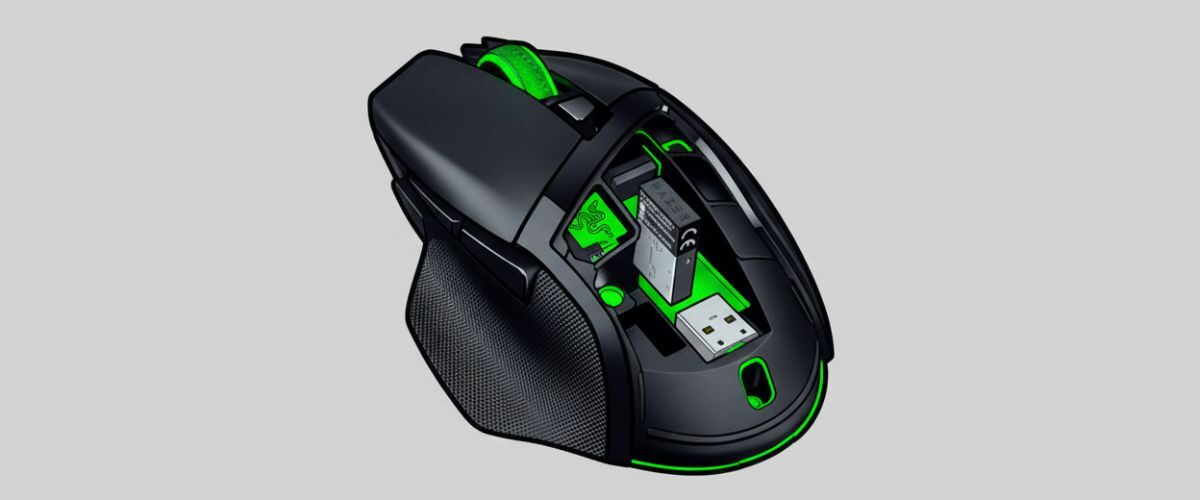
Applies to: Razer Basilisk V3 X HyperSpeed
Last updated: 30 October 2025
Problem
Your mouse works but feels inconsistent. You see periodic stutters, random micro-pauses, or brief disconnects that seem worse near hubs, docks, or certain desk layouts. The 2.4 GHz link is sensitive to placement, nearby electronics, and USB noise, especially around USB 3.x devices and metal enclosures.
Solution
Give the receiver a clean radio path and a stable USB connection. Place it on a short USB extension near the mouse, choose a quiet port on the motherboard, separate it from noisy USB 3 gear and Wi-Fi adapters, and reduce other 2.4 GHz congestion. Validate by A B testing different ports and distances, then lock in your best setup and save a stable hardware profile.
Step-by-step instructions
A) Position the receiver correctly
- Plug the HyperSpeed receiver into a short USB-A extension and place it on the desk within 20 to 30 cm of the mouse.
- Keep line of sight where possible. Avoid hiding the dongle behind a metal PC case, monitor stand, or thick cables.
- Do not place the receiver directly next to another 2.4 GHz dongle. Leave at least a few centimeters of space.
B) Pick the best USB port
- Try a rear motherboard USB-A port first for desktops. These ports usually have cleaner power and signal.
- Test USB 2.0 vs USB 3.x. On some rigs, USB 2.0 ports generate less 2.4 GHz noise.
- Avoid unpowered hubs, stacked front-panel splitters, and daisy-chained docks during diagnosis.
C) Separate from known noise sources
- Move the receiver away from USB 3 external drives, high-speed card readers, and thick display cables that run close to the case edge.
- Relocate Wi-Fi dongles and antennas to the far side of the chassis or onto their own extension.
- Keep Bluetooth transmitters, cordless phone bases, and 2.4 GHz headsets a bit farther from the receiver.
D) Improve the RF environment
- If your router is nearby, prefer 5 GHz Wi-Fi on the host machine when possible to ease 2.4 GHz congestion.
- Reduce desk clutter that reflects signals. Metal trays, speakers with metal grills, and close-packed cables can create multipath effects.
- For compact desks, mount the extension to a small clip at the front edge for repeatable placement.
E) Tune mouse settings for stability
- Start at 1000 Hz polling. If you still see periodic hiccups through a dock or KVM, test 500 Hz and compare.
- Keep a moderate DPI for diagnosis so you can see small stutters clearly, then return to your preferred sensitivity.
- If drops occur after idle, increase the device sleep timer slightly and confirm wake behavior.
F) Verify with structured A B tests
- Port test: Try Port 1 vs Port 2 with the receiver placed identically on the desk. Note which is smoother.
- Distance test: 10 cm vs 30 cm from the mouse. Choose the shortest reliable distance that keeps cables tidy.
- Interference test: Unplug nearby USB 3 drives and Wi-Fi adapters for five minutes. If the problem disappears, reintroduce devices one at a time and relocate the culprit.
- Direct vs dock: Test direct-to-PC for a full session. If stable, re-add the dock and keep the receiver on a separate extension away from the dock’s cable bundle.
G) Lock in the winning setup
- Leave the receiver on the desk extension at the position that tested best and label the cable so it is not moved accidentally.
- Save a hardware profile with your preferred DPI and polling so behavior is consistent even without software.
- Take a quick photo of your final routing and placement to recreate it after cleaning or moving desks.
Optional methods or tools
- Right-angle USB adapter plus a short extension to route the dongle cleanly to the front of the desk.
- Ferrite core on long USB runs to reduce high-frequency noise near the PC side.
- Spare receiver for A B testing or for a second PC so you do not need to move the dongle.
- Cable clips to keep the receiver extension in a fixed, line-of-sight position.
Best practices or tips
- Treat the receiver like a tiny antenna. Proximity + clear path beats any software tweak.
- Do not cluster multiple wireless dongles. One dongle per physical area on the chassis works better than a row of them.
- If you must use a dock or KVM, keep the mouse receiver on its own extension a short distance from the hub.
- Re-check performance after major desk changes such as a new monitor arm or external drive.
- Replace the AA battery proactively; low voltage increases retransmissions that look like interference.
Clean RF conditions make a bigger difference than most settings. A simple desk-level extension that brings the receiver close and in sight often eliminates stutter and drops in one move. Once you find a low-noise port and tidy cable path, you can push polling higher and rely on consistent control across long sessions.
If your workspace is dense with electronics, standardize a small routine: confirm the receiver’s desk clip, keep Wi-Fi on 5 GHz where possible, and space out 2.4 GHz dongles. These small habits prevent radio congestion from creeping back in and keep your Basilisk V3 X HyperSpeed feeling wired-solid.


