
How to fix Dymo Connect losing saved label templates or printer settings
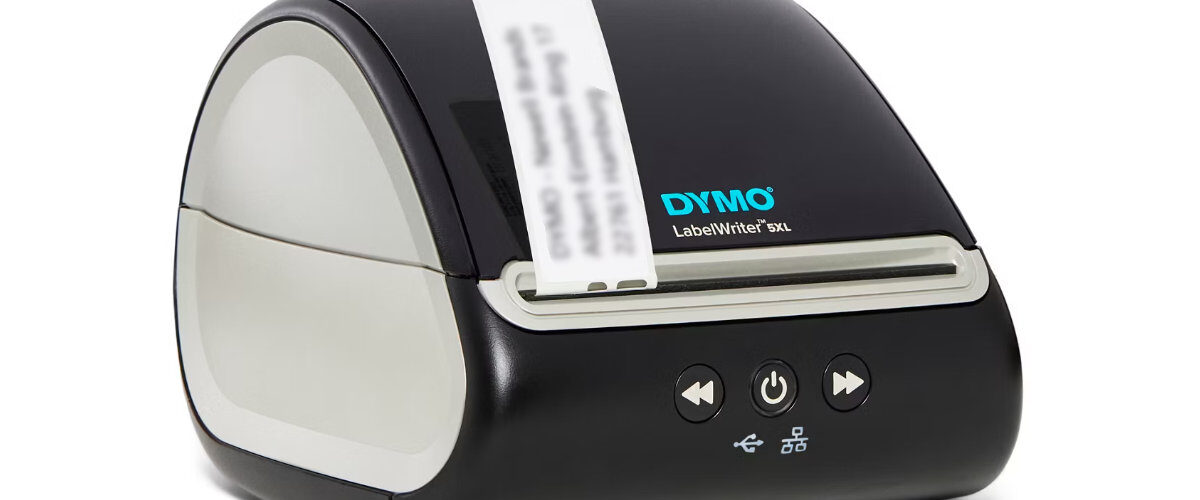
Applies to
Dymo LabelWriter 450 series, Dymo LabelWriter 550 series, Dymo LabelWriter 4XL, Dymo LabelWriter 5XL, Windows, macOS, Dymo Connect, and Dymo Label Software
Last updated
May 2026
Problem
Dymo Connect keeps losing your saved label templates, recent designs, printer selection, label size, or other settings. You may open the software and find that your usual template has disappeared, the wrong printer is selected, the label size has changed, or the software behaves as if it has been reset.
This can happen after a software update, operating system update, user profile change, permissions issue, OneDrive or iCloud sync problem, corrupted settings file, or when the software is being used across multiple Windows or Mac user accounts.
Solution
To fix Dymo Connect losing saved templates or printer settings, first check where your label files are saved, confirm you are signed into the correct computer user profile, avoid saving templates only in temporary or synced folders, remove duplicate printer entries, and reinstall or reset Dymo Connect if the settings appear corrupted.
The most important step is to separate two different issues. Saved label templates are usually files stored somewhere on the computer, while printer settings are usually stored by Dymo Connect, Windows, macOS, or the printer driver. A missing template may simply be saved in a different folder, while a missing printer setting may be caused by a driver or software reset.
Step by step instructions
Check whether the template is missing or just not in the recent list
Dymo Connect may not always show every saved label in the recent files area. If a template is not listed, it may still exist on the computer.
Instead of relying only on the recent list, use the open file option inside Dymo Connect and browse to the folder where you normally save label templates.
Check for:
- Saved label files in your Documents folder.
- Label files in Downloads.
- Label files on the Desktop.
- Label files inside OneDrive, iCloud Drive, Google Drive, or Dropbox folders.
- Templates saved under another Windows or Mac user account.
- Older versions of the template with a different file name.
If the file opens normally when manually selected, the issue is probably the recent list, not the actual saved template.
Search your computer for saved label files
If you are not sure where the label template was saved, search your computer.
On Windows, use File Explorer and search common locations such as Documents, Desktop, and Downloads. On macOS, use Finder search and check your user folders.
Look for anything with a name related to the label design, customer, product, address list, shipping label, barcode, or label size.
Useful places to check include:
- Documents.
- Desktop.
- Downloads.
- OneDrive folders.
- iCloud Drive folders.
- Shared folders.
- Network drives.
- External drives.
- Old backup folders.
If you find the template, open it in Dymo Connect and save a fresh copy in a clearly named local folder.
Confirm you are using the same computer profile
Saved settings and templates can appear to vanish if you are using a different Windows or Mac user profile.
This is common on shared computers, office computers, family Macs, school devices, and laptops with both admin and standard user accounts.
Check whether:
- You are signed into the same Windows account.
- You are signed into the same Mac user account.
- Someone else installed Dymo Connect under a different profile.
- The template was saved while using an administrator account.
- The computer was recently rebuilt, migrated, or renamed.
- A work profile has replaced a personal profile.
If the template was saved under another profile, copy it into a shared folder or your current Documents folder.
Save templates in a dedicated local folder
If templates are being lost or hard to find, create a dedicated folder for Dymo label designs.
A simple folder structure makes templates easier to manage and reduces the chance of losing them after updates or profile changes.
Good examples include:
- Documents, then Dymo Labels.
- Documents, then Label Templates.
- A shared company folder for office label templates.
- A backed-up local folder for important label designs.
- Separate folders for address labels, barcodes, shipping labels, and product labels.
After opening a template, use Save As and save it into the dedicated folder. Avoid relying only on the software’s recent files list.
Avoid saving important templates only in temporary folders
Templates saved in temporary locations can disappear during cleanup, updates, profile resets, or browser downloads cleanup.
Avoid storing important templates only in:
- Temporary folders.
- Downloads.
- Email attachment preview folders.
- Browser cache folders.
- Desktop clutter folders.
- Old migration folders.
- Unmanaged USB drives.
If you receive a label file by email or download one from another system, save a proper copy into your dedicated Dymo label folder before editing it.
Check OneDrive, iCloud, or cloud sync behaviour
Cloud sync tools can sometimes make label templates appear missing if files are online-only, moved, renamed, or not yet synced.
If your templates are stored in OneDrive, iCloud Drive, Google Drive, Dropbox, or another sync folder, check that the files are available locally before opening Dymo Connect.
Look for signs such as:
- Cloud icons next to files.
- Files showing as online-only.
- Sync errors.
- Recently renamed folders.
- Work and personal cloud accounts being mixed.
- Files available on one computer but not another.
- Templates opening slowly or failing to save.
If a template is important, keep a local copy as well as a cloud backup.
Check whether the printer setting is being reset
If Dymo Connect keeps selecting the wrong printer, the template may be fine but the printer setting may be changing.
This often happens when there are duplicate printer entries or when the LabelWriter is moved between USB ports, docks, or computers.
Check the printer list in Dymo Connect and in your operating system.
Look for:
- Multiple Dymo LabelWriter entries.
- Old printers that are no longer connected.
- A Dymo printer showing as offline.
- A duplicate printer created after reconnecting USB.
- A PDF printer being selected by mistake.
- A shared printer entry instead of the local printer.
Remove duplicate or unused entries so Dymo Connect has a clearer printer list.
Remove duplicate printers in Windows
On Windows, duplicate Dymo printers can cause settings to appear lost because the software may be selecting a different printer entry each time.
Open Settings, then Bluetooth and devices, then Printers and scanners.
Remove old or duplicate Dymo LabelWriter entries that are not used. Keep the printer entry that matches the currently connected LabelWriter.
After removing duplicates:
- Disconnect the LabelWriter USB cable.
- Restart Windows.
- Reconnect the LabelWriter directly by USB.
- Open Dymo Connect.
- Select the correct printer.
- Save and reopen a test label.
This helps Dymo Connect remember the correct printer more reliably.
Remove duplicate printers on macOS
On macOS, old printer entries can also confuse Dymo Connect.
Open System Settings, then Printers and Scanners. Remove old or unused Dymo LabelWriter entries.
Then reconnect the printer directly by USB and add it again if needed.
After doing this:
- Open Dymo Connect.
- Choose the correct printer.
- Select the correct label size.
- Save a test template.
- Close and reopen Dymo Connect.
- Confirm the settings remain.
If settings now stay in place, the issue was likely caused by stale printer entries.
Check the label size saved in the template
Sometimes it looks like Dymo Connect has forgotten the label size, but the saved template itself was created for a different label roll.
Open the template and check the label size shown in the software. Compare it with the physical roll loaded in the printer.
Check:
- The saved template label size.
- The physical label roll size.
- The selected printer model.
- The print preview.
- The label orientation.
- Any objects sitting outside the label area.
If the template uses the wrong size, create a new template using the correct label size and copy the content across carefully.
Check permissions on the save folder
If Dymo Connect cannot write to the folder where templates or settings are stored, changes may not be saved properly.
This is more likely on managed work computers, shared network drives, locked-down school devices, or folders controlled by another user account.
Check whether you can:
- Create a new file in the folder.
- Rename a file in the folder.
- Save changes to an existing label.
- Delete a test file from the folder.
- Open the file again after closing Dymo Connect.
If you cannot save properly, move the template to a folder you control, such as your own Documents folder.
Check whether security software is blocking changes
Security software, controlled folder access, or workplace restrictions can sometimes prevent applications from saving settings or templates.
If Dymo Connect appears to save changes but they are gone the next time you open it, permissions or protection rules may be involved.
Ask your IT team to check whether Dymo Connect is allowed to write to:
- Your Documents folder.
- The Dymo application data folder.
- Your user profile folders.
- Cloud sync folders.
- Network locations used for templates.
This is especially relevant on business, school, or locked-down devices.
Create a fresh template as a test
To check whether the problem is with Dymo Connect or an old template, create a new test template.
Use a simple label design with one text box. Save it into a known local folder, close Dymo Connect, reopen it, and open the saved file again.
Test the following:
- Does the file still exist?
- Does it open correctly?
- Is the label size still correct?
- Is the printer selection remembered?
- Does the test label print correctly?
- Does the file appear in the recent list?
If the new template saves properly, the original template may be damaged or stored in an unreliable location.
Reset or reinstall Dymo Connect
If templates and settings continue to disappear, the Dymo Connect installation or user settings may be damaged.
Download the latest version from the official Dymo support page:
Before reinstalling, make sure your important label templates are backed up. Reinstalling the software should not be used as a substitute for locating and saving your actual template files.
Recommended approach:
- Back up your important label templates.
- Remove old or duplicate printer entries.
- Uninstall Dymo Connect if appropriate.
- Restart the computer.
- Install the latest version.
- Restart again if prompted.
- Reconnect the LabelWriter directly by USB.
- Open and save a test template.
If a clean reinstall fixes the issue, the original settings may have been corrupted.
Back up important label templates
If you rely on labels for stock, shipping, barcodes, visitors, files, or product packaging, treat templates as important working files.
Create a backup copy of your label folder so that a software reset, computer replacement, or profile issue does not cause disruption.
A simple backup plan can include:
- A local Documents folder.
- A cloud backup copy.
- A network share for business templates.
- A dated export or copy before major software updates.
- A separate copy of barcode or shipping templates.
- Notes on which label roll each template uses.
This makes it much easier to recover quickly if settings or recent files are lost again.
Optional methods or tools
- Use File Explorer on Windows to search for saved label files.
- Use Finder on macOS to search Documents, Desktop, Downloads, and cloud folders.
- Use OneDrive, iCloud, Google Drive, or Dropbox carefully for backups, but keep important files available locally.
- Use Windows Printers and scanners to remove duplicate Dymo printer entries.
- Use macOS Printers and Scanners to remove and re-add the LabelWriter.
- Use a dedicated local folder for all Dymo templates.
- Download the latest Dymo software from https://www.dymo.com/support?cfid=user-guide
- Ask an IT administrator to check folder permissions on managed computers.
Best practices or tips
- Do not rely only on the recent files list inside Dymo Connect.
- Save important label templates in a clearly named folder.
- Keep a backup copy of business-critical templates.
- Remove duplicate Dymo printer entries after reinstalling or reconnecting the printer.
- Check the label size inside each saved template before printing.
- Avoid saving important templates only in Downloads or temporary folders.
- Keep templates local if cloud sync causes delays or missing files.
- Test one fresh template to confirm whether Dymo Connect is saving correctly.
Dymo Connect losing saved label templates or printer settings is usually caused by file location, user profile, cloud sync, printer entries, or damaged software settings. The template may not be gone at all. It may simply be saved under another profile, stored in a different folder, hidden behind a cloud sync issue, or missing from the recent files list.
The best long-term fix is to manage label templates like normal documents. Save them in a dedicated folder, back them up, remove old printer entries, and keep Dymo Connect updated. Once your templates and printer settings are organised, it becomes much easier to use the LabelWriter reliably for address labels, barcode labels, shipping labels, product labels, name badges, and office filing.


