
How do I add applications to MDT?
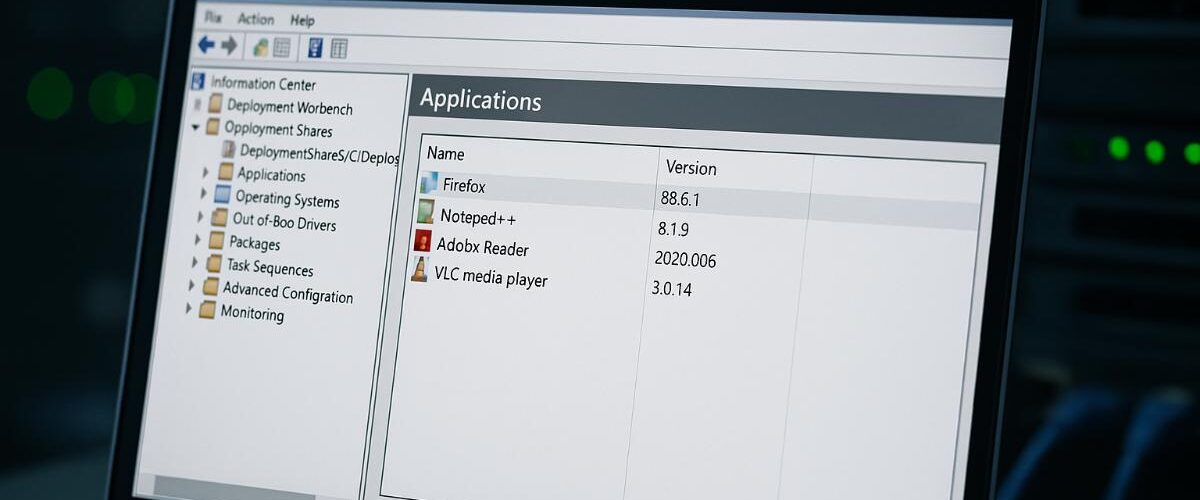
Applies to: Microsoft Deployment Toolkit (MDT) 8456 and later
Last updated: May 2025
Problem
You want to include third-party or custom applications (e.g., Microsoft Office, Chrome, Zoom) in your MDT deployments so they’re installed automatically or optionally during OS installation.
Solution
MDT allows you to import applications into the Deployment Workbench and then reference them in Task Sequences or allow users to select them during deployment.
Step-by-Step Guide
1. Prepare the Application Files
- Download or gather the full installation package.
- Extract or organize files into a folder containing:
- Setup executable or MSI file
- Any required files or subfolders
- Make sure the installer supports silent installation (e.g.,
/quiet,/silent,/S).
2. Open Deployment Workbench
- Launch Deployment Workbench.
- Expand your Deployment Share > Applications.
3. Import the Application
- Right-click Applications > New Application.
- Choose:
- Application with source files (most common)
- Application without source files or elsewhere on the network
- Application bundle (for grouping multiple apps)
Click Next.
4. Provide Application Info
- Publisher: e.g., Google
- Application Name: e.g., Chrome
- Version: e.g., 123.0
- Optionally provide language and comments
Click Next.
5. Select Source Directory
- Browse to the folder containing the setup files.
Click Next.
6. Define Destination Directory Name
- MDT will copy files into
DeploymentShare\Applications\YourAppName.
Click Next.
7. Enter the Silent Installation Command
- Example commands:
- MSI:
msiexec.exe /i yourapp.msi /quiet /norestart - EXE:
setup.exe /quietorinstall.exe /S
- MSI:
Click Next, then Finish.
8. Update Deployment Share
- After adding applications, right-click your Deployment Share > Update Deployment Share.
- Not always necessary, but recommended if you’ve added apps that need to be included in boot media or scripts.
Best Practices
- Test each application installation manually to confirm the silent switch works.
- Keep apps organized by vendor, type, or deployment role.
- Use application bundles to install multiple apps together.
Notes
- Application install logs are available during deployment in:
C:\MININT\SMSOSD\OSDLOGSC:\Windows\Temp\DeploymentLogs
- Some applications may require prerequisites—add these first or use conditions to handle dependencies.
- You can reference applications later in Task Sequences or automate their selection via
CustomSettings.ini.


