
Troubleshooting: Random disconnects or intermittent drops with the HyperSpeed receiver
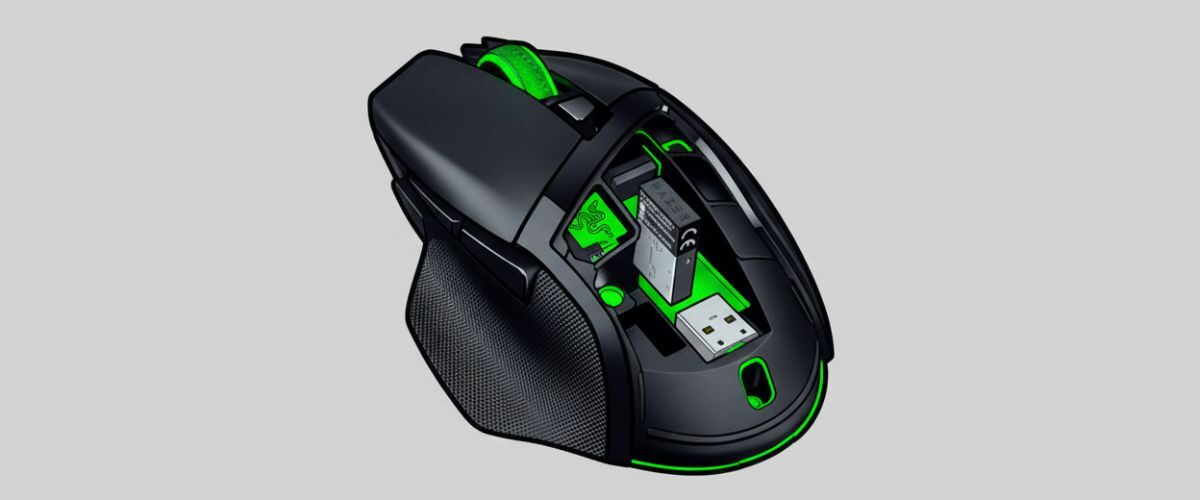
Applies to: Razer Basilisk V3 X HyperSpeed
Last updated: 30 October 2025
Problem
The mouse connects over 2.4 GHz HyperSpeed but drops for a second, freezes, or randomly disconnects. It may work fine for minutes and then cut out, or it may resume after a brief pause. Common causes include poor receiver placement, crowded USB hubs, USB power saving, radio interference near the dongle, a weak battery, or a lost receiver pairing.
Solution
Stabilize the radio link and USB path. Place the receiver on a short USB extension near the mouse, separate it from noisy USB 3 devices, and test different ports. Turn off aggressive USB power saving in the OS, replace the battery, and re-pair the mouse to the receiver if needed. If you use docks or KVMs, test direct to the PC to rule out the intermediary. Cross test on another machine to isolate hardware from software.
Step-by-step instructions
A) Quick fixes to stop the drops
- Power and mode: Confirm the slider is at 2.4 and install a fresh AA battery.
- Receiver placement: Plug the dongle into a short USB-A extension and place it on your desk within 20 to 30 cm of the mouse.
- Port change: Try a different USB-A port. Prefer a motherboard rear port for desktops or a direct port on laptops. Test USB 2.0 versus USB 3.x.
- Interference sweep: Move the receiver away from USB 3 hard drives, Wi-Fi adapters, thick display cables, and metal case edges.
B) Eliminate USB power and driver issues
- Windows power:
- Open Device Manager. For each USB Root Hub or Generic USB Hub, uncheck Allow the computer to turn off this device to save power under Power Management.
- In Power Options, set USB selective suspend to Disabled for the current plan.
- macOS power: Test without hubs or docks. If you use a display dock, try another port or a direct adapter.
- System updates: Install pending OS and optional driver updates. Restart and retest.
C) Re-pair and refresh the 2.4 GHz link
- Power cycle: Turn the mouse Off for 10 seconds, then back to 2.4.
- Re-seat the receiver: Unplug it for 10 seconds, then plug back in and wait before moving the mouse.
- Re-pair: Use the official mouse pairing utility to bind the mouse to the current HyperSpeed receiver. Follow the on-screen steps and verify movement after pairing.
D) Test without intermediaries
- Hubs and docks: Move the receiver off the hub or KVM and plug it directly into the PC with a short extension.
- Front vs rear: If front ports are noisy on your case, try a rear motherboard port with an extension onto the desk.
- Distance: Keep line of sight between mouse and receiver. Avoid placing the dongle behind a monitor stand or under a metal lip.
E) Tune settings that influence stability
- Polling rate: If drops persist, set polling to 500 Hz and retest. Many setups remain very responsive at 500 Hz while reducing bus pressure.
- Sleep behavior: If disconnects happen after idle, lengthen device sleep timers slightly, then verify wake reliability.
- Wi-Fi proximity: If a Wi-Fi adapter sits near the receiver, move it to a different port or position. Prefer 5 GHz Wi-Fi on the host if possible.
F) Isolate hardware vs host
- Cross test: Plug the receiver into another PC and test for 10 to 15 minutes.
- Spare receiver: If available, pair the mouse to a second compatible HyperSpeed receiver. If the issue vanishes, the first receiver or its port is the culprit.
- Bluetooth sanity check: Switch to BT temporarily. If Bluetooth is rock solid on the same desk, focus on the 2.4 GHz path and USB environment.
Optional methods or tools
- USB extension cradle to position the receiver on the desk and away from noise sources.
- Mouse pairing utility to re-bind after replacing a dongle or when pairing data is corrupted.
- System latency tools to spot background spikes that correlate with input hiccups.
- Spare AA batteries so you can rule out voltage dips quickly.
Best practices or tips
- Keep the receiver close to the mouse with a clear path. This single change resolves many intermittent drops.
- Avoid stacking multiple 2.4 GHz dongles side by side. Spread them across ports on different sides of the machine.
- If you rely on a dock or KVM, validate stability with a direct connection for a few days before reintroducing the intermediary.
- Save a stable profile to on-board memory with your usual DPI and 500 Hz polling. If problems recur on a new PC, switch to this profile first.
- Document the port, cable, and placement that work best so you can recreate the setup after moving desks.
A solid 2.4 GHz link starts with clean radio conditions and a reliable USB path. Bringing the receiver onto the desk with a short extension and separating it from Wi-Fi adapters and USB 3 storage removes the most common causes of dropouts. Once the link is clean, disabling aggressive USB power saving on Windows and testing direct to the PC instead of through a dock will usually eliminate the remaining hiccups.
If randomness persists, reduce the polling rate to 500 Hz and re-pair the mouse to the receiver. Cross testing on another PC helps confirm whether you are dealing with a host specific issue or a failing receiver. Keeping a spare labeled receiver and a fresh AA battery in your kit turns a frustrating intermittent problem into a quick two minute fix.


