
Troubleshooting: Double-clicking, missed clicks, or inconsistent clicks on the Basilisk V3 X HyperSpeed
Applies to: Razer Basilisk V3 X HyperSpeed
Last updated: 30 October 2025
Problem
Single clicks sometimes register as double clicks, clicks fail to register, or click timing feels inconsistent. Symptoms may be intermittent, appearing more often after the PC wakes from sleep, during fast clicking, or when battery level is low. Causes include low voltage from a depleted AA battery, wireless interference, aggressive USB power saving, accidental debounce settings, surface or grip issues, and in rare cases, a failing switch.
Solution
Rule out simple causes first. Replace the AA battery, stabilize the wireless link, and bypass hubs or docks. Refresh the 2.4 GHz pairing and verify settings in your configuration software, including any debounce or double-click speed options in the OS. Clean the mouse to ensure no debris is interfering with switch travel. If problems persist across multiple systems, perform a controlled A/B test in Bluetooth mode and on a second computer to isolate hardware from environmental factors.
Step-by-step instructions
A) Quick fixes that solve most cases
- Install a fresh AA battery and reseat the battery cover.
- Power cycle the mouse: Off for 10 seconds, then back to 2.4 or BT.
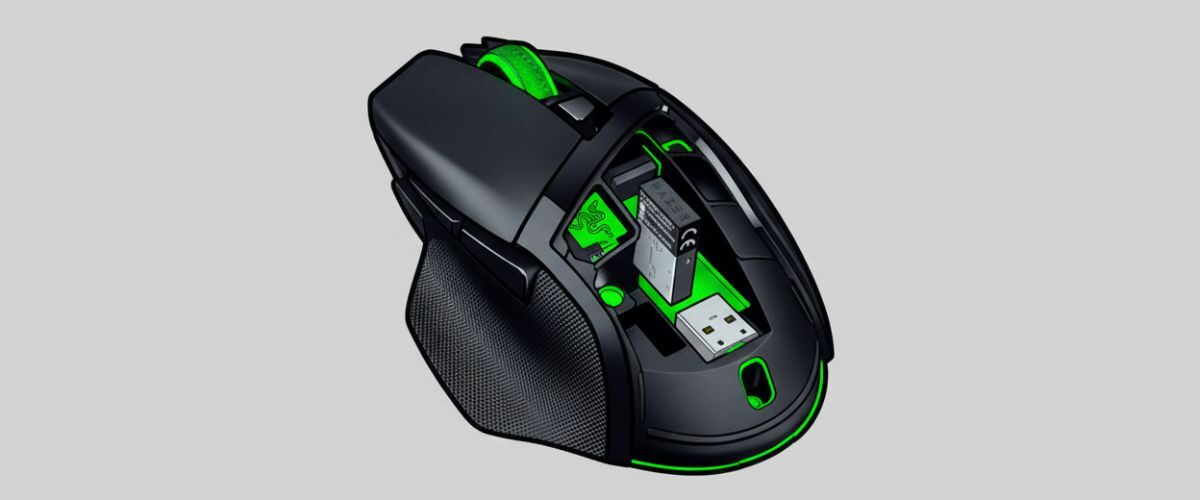
- Move the receiver onto a short USB extension on the desk, 20–30 cm from the mouse. Avoid placing it behind the PC or next to USB 3 drives.
- Try a different USB port and avoid unpowered hubs and crowded front panels.
B) Re-establish a clean 2.4 GHz link
- Re-seat the receiver and wait 10 seconds before moving the mouse.
- Re-pair the mouse and receiver with the official pairing utility to ensure a clean handshake.
- Reduce interference by spacing out other 2.4 GHz dongles and moving any Wi-Fi adapters away from the receiver.
C) Check OS and software click behavior
- Windows double-click speed: Open Mouse Settings and slightly slow the Double-click speed slider so normal clicks are not misinterpreted as doubles.
- Disable odd background tools that remap clicks or create gestures while testing.
- In your configuration software, confirm that no macro or toggle is bound to primary click. If there is a debounce or click latency option, return it to default.
- Test at stock settings: Temporarily remove custom profiles and Hypershift actions, keeping only left and right click active.
D) Surface, grip, and mechanical checks
- Clean the switches and shell gaps using short bursts of compressed air from a safe distance. Do not spray liquid cleaners into the switch area.
- Inspect the mouse feet and pad. Excess debris can alter the angle of the shell and cause partial presses.
- Grip check: Make sure your thumb or palm is not slightly pressing near the primary switch hinges while clicking, which can cause inconsistent travel.
- Scroll wheel press: If middle-clicks are misfiring, confirm you are pressing directly downward and not rolling while pressing.
E) Power and performance tuning
- Polling rate: If you see click inconsistencies during heavy system load or on laptops, try 500 Hz instead of 1000 Hz and retest.
- Sleep and wake: If doubles appear after wake, toggle the mouse Off then back On, or briefly replug the receiver.
- Bluetooth A/B test: Switch to BT for a few minutes. If clicks are stable on Bluetooth but not on 2.4 GHz, focus on receiver placement and port choice.
F) Cross-testing to isolate the cause
- Second computer test: Try the mouse on another PC. If the issue follows the mouse, capture that in your notes.
- Different surface: Test on a hard pad or clean desk mat.
- Spare receiver: If available, pair to a second compatible receiver to rule out a marginal dongle.
G) When to consider hardware support
- Consistent double-clicks on single press across multiple PCs, with fresh batteries, clean environments, and baseline settings, may indicate a failing primary switch.
- Document everything you tried and the conditions that reproduce the issue. This speeds up warranty or support decisions.
Optional methods or tools
- Short USB extension cradle to ensure clean line of sight and reduce packet retries.
- Profile exporter to back up and temporarily remove custom mappings during troubleshooting.
- Latency monitoring utilities to confirm that click spikes correlate with CPU or USB load.
Best practices or tips
- Keep a “Safe” on-board profile with standard buttons, modest DPI, and 500 Hz polling for quick diagnosis.
- Replace the AA before it is critically low; click anomalies often precede obvious cursor lag.
- Avoid stacking multiple receivers on one hub and keep the dongle away from Wi-Fi antennas and thick display cables.
- Re-check OS double-click speed after OS updates, as settings can reset.
A consistent click starts with clean power and a clean radio path. A fresh battery and a receiver on a short desk extension remove the most common variables. Returning to default OS and software settings helps confirm whether the problem is configuration related or environmental. If the symptom persists across machines with baseline settings, capture your findings and consider hardware support.
For long-term reliability, keep your surface clean, maintain sensible polling rates, and avoid complex click macros on your primary buttons. Save a minimal on-board profile and use it to validate behavior anytime you move between PCs or docks. These habits make it easy to spot when the issue is environmental versus mechanical.


