
How to install Dymo LabelWriter drivers on Windows
Applies to
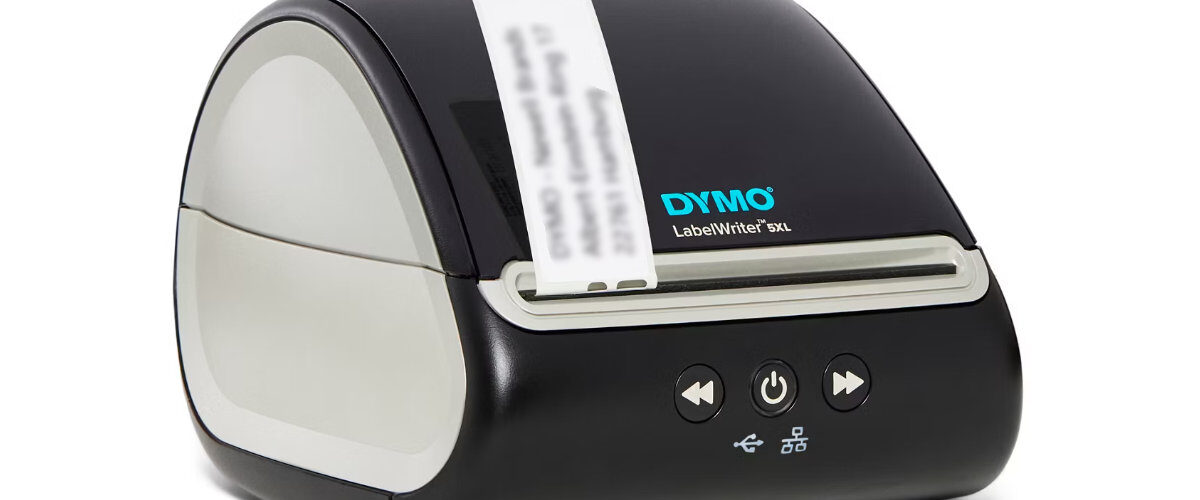
Dymo LabelWriter 450 series, Dymo LabelWriter 550 series, Dymo LabelWriter 4XL, Dymo LabelWriter 5XL, Windows 10, Windows 11, Dymo Connect, and Dymo Label Software
Last updated
May 2026
Problem
You need to install a Dymo LabelWriter printer on a Windows computer, but Windows is not detecting the printer correctly, the printer is showing as unspecified, Dymo Connect cannot find it, or labels will not print after connecting the USB cable.
This usually happens when the Dymo software or driver has not been installed correctly, the printer was connected before the software was installed, Windows has assigned a basic or incorrect driver, or an older Dymo driver is conflicting with the newer installation.
Solution
Install the correct Dymo software package for Windows, allow it to install the printer drivers, connect the LabelWriter directly by USB, then confirm that Windows can see the printer under Printers and scanners.
For most current Windows installations, Dymo Connect for Desktop is the recommended software. Older LabelWriter models may still work with Dymo Label Software, but you should always start by checking the official Dymo support page at https://www.dymo.com/support?cfid=user-guide
Step by step instructions
Check your Dymo LabelWriter model
Before downloading anything, check the exact model of your Dymo LabelWriter. The model name is usually printed on the front, base, rear label, or underside of the printer.
Common models include:
Dymo LabelWriter 450
Dymo LabelWriter 450 Turbo
Dymo LabelWriter 450 Twin Turbo
Dymo LabelWriter 4XL
Dymo LabelWriter 550
Dymo LabelWriter 550 Turbo
Dymo LabelWriter 5XL
The model matters because some older LabelWriter printers may require different software from newer 550 series printers. Installing the wrong software can result in the printer not appearing in Dymo Connect or Windows using a generic driver.
Disconnect the printer before installing the software
If the Dymo LabelWriter is already plugged into the computer, unplug the USB cable before starting the driver installation.
This helps avoid Windows automatically installing a basic driver before the official Dymo software is in place. The power cable can remain connected, but the USB cable should be disconnected until the installation is ready or complete.
Download the Windows software from Dymo
Open your browser and go to the official Dymo support page:
Look for the software and drivers section. Download the correct Windows version for your printer and operating system.
For most Windows 10 and Windows 11 users, Dymo Connect for Desktop is the best starting point. If you are using an older LabelWriter printer, especially from the 450 series, Dymo Label Software may also be listed as an option.
Make sure you download the Windows version, not the macOS version.
Run the installer as an administrator
Once the download has finished, open the installer file.
If Windows asks whether you want to allow the app to make changes to your device, choose Yes. Printer driver installation usually requires administrator permission.
Follow the installation prompts on screen. Accept the licence agreement if prompted and allow the installer to add the required printer drivers and software components.
If you are using a managed work or school computer, you may need an administrator account to complete the installation.
Restart Windows if prompted
Some Dymo installations may ask you to restart Windows. If you see this prompt, restart the computer before connecting the printer.
Even if Windows does not ask for a restart, it can still be useful to restart after installation if the printer does not appear correctly the first time.
Connect the Dymo LabelWriter by USB
After the software has installed, connect the LabelWriter directly to the computer using the USB cable.
Avoid using a USB hub, monitor USB port, docking station, or extension cable during the first installation. A direct USB connection is more reliable and makes troubleshooting easier.
Windows should detect the printer and finish setting up the device. This may take a minute or two.
Check Printers and scanners in Windows
Open Windows Settings.
Go to Bluetooth and devices, then Printers and scanners.
Look for your Dymo LabelWriter in the list of installed printers. It may appear as Dymo LabelWriter, Dymo LabelWriter 450, Dymo LabelWriter 550, or another model-specific name.
If the printer is listed, select it and check that Windows shows it as available. You can also open the printer queue to make sure there are no stuck print jobs.
Open Dymo Connect
Open Dymo Connect for Desktop from the Start menu.
Create a simple label and check the printer selection area. Your Dymo LabelWriter should appear as an available printer.
If more than one printer is listed, select the correct LabelWriter model before printing.
Choose the correct label size
Before printing, choose the label size that matches the roll installed in the printer.
This is an important step because driver installation may succeed even if the label size is wrong. If the wrong label template is selected, labels may print too small, off-centre, cropped, rotated, or across more than one label.
Print a test label
Create a basic text label and print it.
Use something simple such as Test Label or a short address. Avoid barcodes, logos, imported lists, and shipping integrations until you know that the driver and printer are working correctly.
If the label prints successfully, the driver installation is complete.
Remove old Dymo drivers if there are problems
If the LabelWriter still does not appear, or if it appears more than once, old Dymo drivers may be causing a conflict.
Open Windows Settings, then Bluetooth and devices, then Printers and scanners. Remove any duplicate or old Dymo LabelWriter entries.
You can then disconnect the printer, restart Windows, reinstall the Dymo software, and reconnect the printer after installation.
Check Device Manager if Windows does not detect the printer
If the printer does not appear in Printers and scanners, open Device Manager.
Look under Printers, Print queues, Universal Serial Bus controllers, or Other devices.
If you see an unknown device, unspecified device, or Dymo device with a warning symbol, the driver may not have installed correctly.
Disconnect the printer, restart the computer, reinstall the Dymo software, and then reconnect the printer directly to a USB port on the computer.
Check the Windows print queue
If the driver installs but nothing prints, the issue may be a stuck print queue rather than the driver itself.
Open Settings, then Bluetooth and devices, then Printers and scanners. Select the Dymo LabelWriter and open the print queue.
Cancel any stuck jobs, close the queue, restart the printer, and try again from Dymo Connect.
Optional methods or tools
- Use the official Dymo support page to download the latest Windows software at https://www.dymo.com/support?cfid=user-guide
- Try another USB port if Windows does not detect the LabelWriter.
- Use a different USB cable if the printer appears and disappears repeatedly.
- Restart the Windows Print Spooler service if print jobs are stuck.
- Remove duplicate Dymo printer entries from Printers and scanners.
- Use Device Manager to check for unknown devices or driver warnings.
- Test with a simple text label before using address books, mail merge, shipping software, or barcode labels.
- Install with an administrator account if the computer is managed by a workplace or school.
Best practices or tips
- Install the Dymo software before connecting the printer by USB.
- Avoid using USB hubs or docking stations during the first setup.
- Keep the Dymo installer saved in case you need to reinstall later.
- Use the correct software for your LabelWriter model and Windows version.
- Remove old Dymo drivers before reinstalling if the printer has been installed several times.
- Restart Windows after installation if the printer does not appear immediately.
- Do not rely only on Windows automatic driver detection for first-time setup.
- Make sure the correct label size is selected before assuming the driver is faulty.
Installing Dymo LabelWriter drivers on Windows is usually a simple process, but problems can occur when Windows installs a basic driver before the official Dymo software is added. Downloading the correct software first, connecting the printer directly by USB, and checking Printers and scanners afterwards will solve most installation issues.
Once the Dymo LabelWriter driver is installed correctly, the printer should appear in both Windows and Dymo Connect. If it does not, the most useful troubleshooting steps are to remove old printer entries, restart Windows, try another USB port, check Device Manager, and reinstall the Dymo software from the official support page.


