
How to set up a Dymo LabelWriter printer for the first time
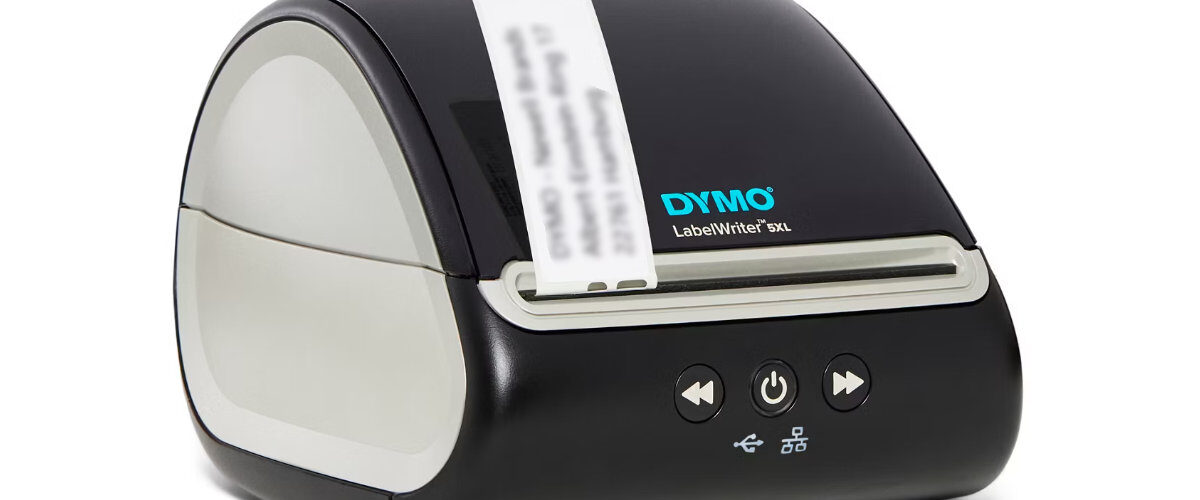
Applies to
Dymo LabelWriter 450 series, Dymo LabelWriter 550 series, Dymo LabelWriter 4XL, Dymo LabelWriter 5XL, Windows, macOS, Dymo Connect, and Dymo Label Software
Last updated
May 2026
Problem
You have a Dymo LabelWriter printer and need to set it up for the first time, but you are not sure which software to install, when to connect the printer, how to load the labels, or how to get your first label to print correctly.
This is a common issue because Dymo LabelWriter printers rely on the correct desktop software, driver, label roll, and printer connection. If any part of the setup is missed, the printer may not appear on the computer, may show as offline, may feed labels incorrectly, or may print blank labels.
Solution
To set up a Dymo LabelWriter properly, install the correct Dymo software first, connect the printer directly to the computer using USB, load the label roll correctly, allow the operating system to detect the printer, and then print a test label from Dymo Connect or Dymo Label Software.
For most modern LabelWriter models, Dymo Connect for Desktop is the recommended software. Older LabelWriter models may still use Dymo Label Software depending on the operating system and printer model. The safest place to download the software is the official Dymo support page at https://www.dymo.com/support?cfid=user-guide
Step by step instructions
Check which Dymo LabelWriter model you have
Before installing anything, check the exact model number of your printer. This is usually printed on the front, underside, or rear label of the device.
Common models include:
Dymo LabelWriter 450
Dymo LabelWriter 450 Turbo
Dymo LabelWriter 450 Twin Turbo
Dymo LabelWriter 4XL
Dymo LabelWriter 550
Dymo LabelWriter 550 Turbo
Dymo LabelWriter 5XL
This matters because newer LabelWriter 550 series printers work slightly differently from older 450 series models. The 550 series is designed to detect compatible Dymo label rolls automatically, while older models are generally more flexible with label stock.
Unbox and check the contents
Remove the printer and accessories from the box. A typical Dymo LabelWriter setup should include the printer, power adapter, power cable, USB cable, label spool, and a starter roll of labels.
Make sure the label spool is included, as the printer needs this to hold the label roll correctly. If the spool is missing, the labels may not feed straight, even if the printer itself is working.
Place the printer in a suitable location
Put the LabelWriter on a flat, stable surface close to the computer you want to use it with. Avoid placing it where the labels can catch on the desk, wall, cables, or other objects as they feed out.
The printer should be close enough that the USB cable can connect directly to the computer without using an extension cable or unpowered USB hub. Direct USB connection is usually more reliable during the first setup.
Install the Dymo software
Go to the official Dymo software and drivers page at https://www.dymo.com/support?cfid=user-guide
Download the software that matches your operating system and printer model. For most current setups, this will be Dymo Connect for Desktop. If you are using an older LabelWriter model or an older operating system, you may need Dymo Label Software instead.
On Windows, download the Windows version that matches your system type, such as 64-bit or ARM64. On Mac, choose the correct version for Apple Silicon or Intel if the download page gives that option.
Run the installer and follow the on-screen setup prompts. If the installer asks for permission to make changes to the computer, allow it. Printer drivers normally require administrator permission to install properly.
Connect the power cable
Connect the power adapter to the Dymo LabelWriter and plug it into a working wall socket. Make sure the power cable is firmly connected at both ends.
Most LabelWriter models have a small status light on the front. The light should come on when the printer has power. If there is no light, try another socket and check that the power adapter is fully seated.
Connect the USB cable
Connect the USB cable from the Dymo LabelWriter directly to the computer. Avoid using a docking station, USB hub, monitor USB port, or long extension cable during the first setup.
Once connected, Windows or macOS should detect the printer. This may take a minute or two. On Windows, you may briefly see a message that the device is being set up. On Mac, the printer may appear under Printers and Scanners after the driver has installed.
Load the label roll correctly
Open the top cover of the LabelWriter. Remove the label spool and place the roll of labels onto it. The labels should feed from the bottom of the roll, not over the top.
Slide the label roll firmly against the side of the spool so that it sits straight. Then reinsert the spool into the printer.
Feed the first label into the printer slot. The printer should grip the label and pull it into position. If it does not, press the feed button once or check that the roll is sitting correctly on the spool.
If the labels are loose, off-centre, or angled, remove the roll and reload it. Poor label alignment is one of the most common causes of first-time setup problems.
Open Dymo Connect or Dymo Label Software
After the printer is connected and the labels are loaded, open the Dymo software.
In Dymo Connect, look for the printer selection area and confirm that your LabelWriter appears. If more than one printer is listed, choose the correct LabelWriter model.
If the printer does not appear, close and reopen the software. If it still does not appear, restart the computer while leaving the printer connected and powered on.
Choose the correct label type
Select the label size that matches the roll installed in the printer. This is important because the software needs to know the label dimensions before printing.
For example, address labels, shipping labels, name badges, file labels, and large format labels all use different templates. If the wrong size is selected, the label may print cropped, rotated incorrectly, or across multiple labels.
With LabelWriter 550 series printers, the software may detect the label type automatically when genuine compatible labels are installed. If it does not detect the roll, remove and reload the labels, then restart the software.
Create a simple test label
Start with a simple text label. Add a few words such as Test Label, your name, or a sample address.
Keep the first test simple. Do not start with barcodes, logos, complex layouts, or imported address lists until you know the printer is working correctly.
Preview the label before printing. Check that the text fits inside the label area and that the correct label size is selected.
Print your first label
Click Print in the Dymo software and wait for the LabelWriter to print.
The label should feed smoothly and the print should appear clearly. LabelWriter printers use direct thermal printing, so they do not need ink or toner. If the label comes out blank, the roll may be loaded the wrong way round, or the wrong type of label may be installed.
If the label prints but is misaligned, check the label size in the software and reload the label roll so that it sits straight on the spool.
Check the printer in Windows settings
On Windows, you can confirm the printer has installed by going to Settings, then Bluetooth and devices, then Printers and scanners.
The Dymo LabelWriter should appear in the printer list. You can also open the printer queue from this page to check whether any stuck print jobs are waiting.
If the LabelWriter appears as offline, unplug the USB cable, restart the printer, reconnect it, and then restart the Dymo software.
Check the printer on a Mac
On macOS, open System Settings, then Printers and Scanners.
Your Dymo LabelWriter should appear in the list of printers. If it does not appear, use Add Printer and check whether macOS can detect it.
If the printer appears but does not print, remove it from Printers and Scanners, restart the Mac, reconnect the printer, and add it again.
Optional methods or tools
- Use a different USB port if the printer is not detected.
- Try a different USB cable if the LabelWriter does not appear in the software.
- Restart the computer after installing the Dymo software, especially on Windows.
- Check the official Dymo support page for the latest software at https://www.dymo.com/support?cfid=user-guide
- Use Printers and Scanners in Windows or macOS to confirm whether the printer has installed.
- Use a basic text label as your first test before trying address books, mail merge, barcodes, or shipping labels.
- For shared office use, set up and test the printer locally before attempting to share it across a network.
Best practices or tips
- Install the Dymo software before connecting the printer for the first time.
- Connect the printer directly to the computer during setup rather than using a USB hub.
- Keep the label roll tight against the spool guide so labels feed straight.
- Use the correct label template for the physical label roll installed.
- Keep a note of the printer model, software version, and operating system in case you need to troubleshoot later.
- Do not pull labels out manually while the printer is feeding, as this can cause misalignment.
- Store thermal labels away from heat, sunlight, and moisture to avoid faded or poor quality printing.
- If you use a LabelWriter 550 series printer, check label compatibility before buying replacement rolls.
A Dymo LabelWriter is usually straightforward to set up once the correct software, label roll, and USB connection are in place. Most first-time setup problems come from installing the wrong software version, loading the label roll incorrectly, choosing the wrong label size, or connecting through a USB hub before the printer has been detected properly.
Once the LabelWriter has been installed successfully, it can be used for address labels, postage labels, file labels, barcode labels, name badges, and other everyday labelling tasks. Taking a few minutes to set it up carefully at the start helps prevent common printing problems such as blank labels, incorrect alignment, offline status, and the printer not appearing in Dymo Connect.


