
How to fix a Dymo LabelWriter that only works after unplugging and reconnecting it
Applies to
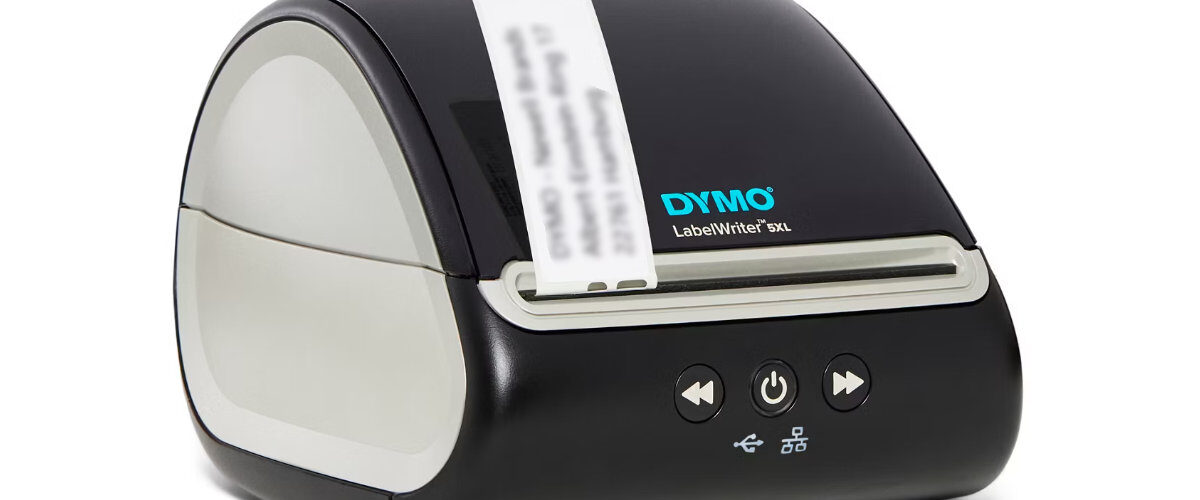
Dymo LabelWriter 450 series, Dymo LabelWriter 550 series, Dymo LabelWriter 4XL, Dymo LabelWriter 5XL, Windows, macOS, Dymo Connect, USB-connected LabelWriter printers, and shared office setups
Last updated
May 2026
Problem
Your Dymo LabelWriter only works after you unplug and reconnect the USB cable or power cable. It may print normally for a while, then stop responding, disappear from Dymo Connect, show as offline, or leave labels stuck in the print queue until you reconnect it.
This can quickly become frustrating because the printer itself may not seem faulty. It may still have power, feed labels when you press the button, and work again as soon as the cable is reconnected. The issue is usually caused by USB power saving, unstable USB ports, docking stations, old printer entries, driver problems, stuck print jobs, or Dymo Connect losing communication with the printer.
Solution
To fix a Dymo LabelWriter that only works after being unplugged and reconnected, start by moving it to a direct USB connection, clearing the print queue, removing duplicate printer entries, disabling USB power saving where needed, and reinstalling the Dymo software if the issue continues.
The aim is to stop the computer from losing contact with the LabelWriter in the first place. Unplugging and reconnecting works because it forces Windows or macOS to rediscover the printer, but it does not solve the underlying cause.
Step by step instructions
Check whether the problem is USB or power related
Start by noticing which action makes the printer work again. This helps narrow down the cause.
If unplugging and reconnecting the USB cable fixes the issue, the problem is likely related to the computer connection, USB port, driver, operating system, or Dymo Connect.
If unplugging and reconnecting the power cable fixes the issue, the issue may be linked to the printer itself, the power adapter, a temporary printer lock-up, or a hardware problem.
Check the pattern:
- Does the issue happen after the computer wakes from sleep?
- Does it happen after the printer has been idle for a long time?
- Does it happen after moving the laptop between locations?
- Does it happen only when connected through a dock or hub?
- Does it happen after printing from a specific application?
- Does it happen after a Windows or macOS update?
If the pattern is clear, focus on that area first.
Connect the LabelWriter directly to the computer
A Dymo LabelWriter is usually most reliable when connected directly to the computer by USB.
If the printer is connected through a USB hub, docking station, monitor USB port, keyboard USB port, or extension cable, remove that from the setup temporarily.
Connect the printer directly and test it for a while.
Check the connection:
- Use a built-in USB port where possible.
- Avoid unpowered USB hubs.
- Avoid monitor USB ports for troubleshooting.
- Avoid switching the printer between several docks.
- Use a short, good quality USB cable.
- Make sure the cable is not stretched or loose.
If the printer works reliably when connected directly, the dock, hub, adapter, or extension cable is likely causing the repeated disconnection.
Try another USB port
Some USB ports are more stable than others, especially on older computers or laptops with mixed USB-A and USB-C ports.
Move the Dymo LabelWriter to another USB port and test again. If you are using a desktop computer, try a rear USB port rather than a front panel port. Rear ports are often connected more directly to the motherboard.
When testing a new port:
- Restart the computer after moving the printer.
- Wait for the printer to be detected.
- Open Dymo Connect.
- Print one simple label.
- Leave the printer idle for a while.
- Try printing again without unplugging it.
If the printer works consistently on one port but not another, keep using the stable port.
Try a different USB cable
A faulty USB cable can cause intermittent printer detection.
The LabelWriter may work when first connected, then stop responding after a while. Reconnecting the cable temporarily restores the connection, making it look like the printer is being reset.
Replace the USB cable with another suitable cable and test again.
Look for signs of a cable issue:
- The printer appears and disappears from the computer.
- Printing fails when the cable is moved.
- The printer works on one day and not the next.
- Dymo Connect sometimes finds the printer and sometimes does not.
- Windows or macOS makes connection sounds repeatedly.
If a new cable fixes the issue, replace the old cable permanently.
Clear the print queue
A stuck print job can make it seem like the printer only works after being reconnected.
When you reconnect the printer, the operating system may retry or clear part of the failed communication, making the next print job work temporarily. If the queue becomes stuck again, the problem returns.
On Windows, open Settings, then Bluetooth and devices, then Printers and scanners. Select your Dymo LabelWriter and open the print queue. Cancel anything stuck, paused, or failed.
On macOS, open System Settings, then Printers and Scanners. Select the Dymo LabelWriter and open the print queue. Remove any waiting or failed jobs.
After clearing the queue:
- Close Dymo Connect.
- Reopen Dymo Connect.
- Create a simple test label.
- Print one label only.
- Confirm that the queue clears after printing.
If the queue keeps filling with failed jobs, the issue may be driver, software, or printer communication related.
Restart Dymo Connect properly
Sometimes the printer is still connected, but Dymo Connect has lost track of it.
Close Dymo Connect completely and reopen it. On Windows, check that the app is not still running in the background. On Mac, quit the app fully rather than only closing its window.
Then check:
- The correct printer is selected.
- The printer does not show as unavailable.
- The selected label size matches the roll.
- A simple test label prints successfully.
If restarting Dymo Connect fixes the issue without unplugging the printer, the problem is likely with the software connection rather than the printer hardware.
Remove duplicate Dymo printer entries
Duplicate printer entries can cause Dymo Connect or the operating system to send print jobs to an old or inactive printer instance.
This often happens when the LabelWriter has been connected to different USB ports, installed multiple times, or used through different docks.
On Windows, go to Settings, then Bluetooth and devices, then Printers and scanners. Remove old, duplicated, or unused Dymo LabelWriter entries.
On macOS, go to System Settings, then Printers and Scanners. Remove old Dymo printers that are no longer used.
After removing duplicates:
- Disconnect the LabelWriter USB cable.
- Restart the computer.
- Reconnect the printer directly.
- Let the operating system detect it.
- Open Dymo Connect and select the correct printer.
This can stop the software from switching back to a stale printer entry.
Disable USB power saving on Windows
Windows can power down USB devices to save energy. This is useful for laptops, but it can cause USB printers to stop responding until they are disconnected and reconnected.
Open Device Manager and check the USB hub power management settings. Where available, disable the option that allows Windows to turn off the device to save power.
Also check the Windows power plan settings for USB selective suspend.
Focus on:
- Universal Serial Bus controllers.
- USB Root Hub entries.
- Generic USB Hub entries.
- Power Management tabs.
- USB selective suspend settings.
- Laptop battery and plugged-in power plans.
After changing these settings, restart Windows and test the printer again.
Check sleep and wake behaviour
If the LabelWriter only needs reconnecting after the computer sleeps, the issue is probably related to sleep and wake behaviour.
This is especially common with laptops, docking stations, and USB-C adapters. The computer wakes up, but the USB path to the printer does not reconnect cleanly.
Test this:
- Connect the LabelWriter directly to the computer.
- Print a simple label.
- Put the computer to sleep.
- Wake the computer.
- Wait one minute.
- Open Dymo Connect.
- Print another test label.
If the problem only happens after sleep, adjust USB power settings, avoid hubs, and consider extending the sleep timer when printing large batches.
Check macOS printer reconnection
On macOS, the issue may be linked to USB adapters, docks, or stale printer entries.
If the printer only works after reconnecting it, remove and re-add it in System Settings, then Printers and Scanners.
A clean reconnection can help macOS refresh the printer entry.
Try this sequence:
- Remove the Dymo LabelWriter from Printers and Scanners.
- Disconnect the USB cable.
- Restart the Mac.
- Reconnect the LabelWriter directly.
- Add the printer again if needed.
- Open Dymo Connect and test.
If the problem only happens through a USB-C dock, test with a different adapter or a direct connection.
Update or reinstall Dymo Connect
If the connection and printer entries look correct but the problem continues, reinstall Dymo Connect.
Download the latest Dymo software from the official Dymo support page:
Before reinstalling:
- Disconnect the printer.
- Remove duplicate Dymo printer entries.
- Uninstall old Dymo software if appropriate.
- Install the latest version.
- Restart the computer.
- Reconnect the LabelWriter directly by USB.
- Print a simple test label.
A clean reinstall can repair driver components or communication services that are not working reliably.
Check whether another application is causing the problem
If the printer only locks up after printing from a particular program, the problem may not be Dymo Connect itself.
Some shipping tools, browser print dialogs, marketplace platforms, or third-party label programs can send print jobs with the wrong page size or printer settings.
Test the printer directly from Dymo Connect first.
If Dymo Connect works but another application causes the issue, check that application for:
- Correct printer selection.
- Correct label size.
- Correct orientation.
- No old print settings saved.
- No paused browser print jobs.
- No repeated batch jobs being sent.
Clear the queue before switching back to Dymo Connect.
Test the printer on another computer
If the LabelWriter still only works after reconnecting, test it on another computer if possible.
Install Dymo Connect on the second computer, connect the printer directly by USB, and print several test labels over time.
This helps identify whether the issue follows the printer or stays with the original computer.
If the printer works normally on another computer, the original computer likely has a USB, power management, driver, or software issue. If the problem happens on multiple computers, the printer, power adapter, or USB port on the printer may be at fault.
Check the power adapter
If the printer only recovers after unplugging the power cable, check the power adapter carefully.
A weak or failing power supply can cause the printer to lock up or behave inconsistently. Make sure the adapter is the correct one for your LabelWriter model and that the cable is not loose or damaged.
Look for:
- No power light.
- Intermittent power light.
- Printer freezing after idle time.
- Printer not feeding labels until power is reset.
- Power adapter getting unusually hot.
- Printer behaving the same on multiple computers.
If the power adapter appears faulty, replace it with the correct compatible adapter for the printer model.
Optional methods or tools
- Use Windows Device Manager to adjust USB power management settings.
- Use Windows power plan settings to test USB selective suspend.
- Use macOS Printers and Scanners to remove and re-add the printer.
- Try a different USB cable to rule out intermittent connection faults.
- Try a different USB port, preferably a direct port on the computer.
- Use Dymo Connect to test printing before using third-party software.
- Download the latest Dymo software from https://www.dymo.com/support?cfid=user-guide
- Test the printer on another computer to separate printer issues from computer issues.
Best practices or tips
- Keep the LabelWriter connected directly to the computer where possible.
- Avoid USB hubs, docks, and monitor ports if the printer regularly needs reconnecting.
- Use the same reliable USB port rather than moving the printer around.
- Clear stuck print jobs before reconnecting the printer.
- Remove duplicate printer entries after repeated installations.
- Keep Dymo Connect updated.
- Avoid letting the computer sleep during large label print runs.
- Replace damaged or loose USB cables rather than repeatedly reconnecting them.
A Dymo LabelWriter that only works after unplugging and reconnecting usually has a communication problem between the printer and the computer. Reconnecting the cable forces the operating system to rediscover the printer, but the real cause is often USB power saving, a weak cable, duplicate printer entries, an unstable dock, or Dymo Connect losing the printer connection.
The best fix is to make the connection stable rather than relying on repeated unplugging. A direct USB connection, clean printer installation, cleared print queue, reliable cable, and adjusted power settings can make the LabelWriter much more dependable for daily address labels, shipping labels, barcodes, file labels, and office labelling.


