
Why does my Dymo LabelWriter stop working after my computer wakes from sleep
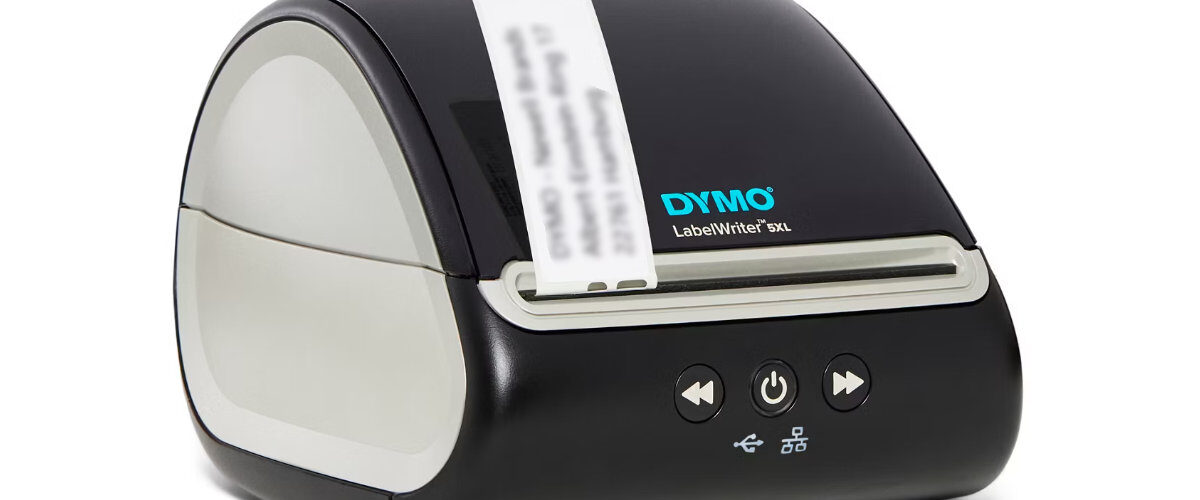
Applies to
Dymo LabelWriter 450 series, Dymo LabelWriter 550 series, Dymo LabelWriter 4XL, Dymo LabelWriter 5XL, Windows, macOS, Dymo Connect, and USB-connected Dymo LabelWriter printers
Last updated
May 2026
Problem
Your Dymo LabelWriter works normally at first, but stops printing after your computer wakes from sleep, standby, hibernation, or screen lock. The printer may still have power, but Dymo Connect may show it as unavailable, Windows or macOS may show it as offline, or print jobs may sit in the queue without printing.
This usually happens because the computer has powered down the USB connection while sleeping and has not properly reconnected to the printer after waking. It can also be caused by docking stations, USB hubs, power saving settings, old printer drivers, or Dymo Connect not refreshing the printer connection after the computer resumes.
Solution
To fix a Dymo LabelWriter that stops working after sleep, reconnect the printer directly by USB, clear the print queue, restart Dymo Connect, disable USB power saving where appropriate, update or reinstall the Dymo software, and avoid relying on unstable hubs or docks for the printer connection.
The quickest temporary fix is usually to unplug and reconnect the USB cable, then restart Dymo Connect. The better long-term fix is to stop the computer from suspending the USB connection or to connect the LabelWriter to a more reliable USB port.
Step by step instructions
Confirm the printer still has power
Before changing computer settings, check that the printer itself is awake and powered.
Look for the status light on the Dymo LabelWriter. If the light is off, check the power adapter and wall socket. If the light is on, press the feed button once to see whether the printer feeds a label.
Check the result:
- If the printer feeds a label, the printer mechanism is working and the issue is probably the computer, USB connection, print queue, or Dymo software.
- If the printer does not feed a label, check the power cable, label roll, and possible label jam before focusing on sleep settings.
- If the printer light is flickering or behaving differently after sleep, disconnect the power for a few seconds and reconnect it.
Restart Dymo Connect
Dymo Connect may not always refresh the printer connection properly after the computer wakes from sleep.
Close Dymo Connect completely, then reopen it from the Start menu on Windows or the Applications folder on Mac. Do not just close the label design window. Make sure the app itself has restarted.
After reopening Dymo Connect:
- Check whether the LabelWriter appears in the printer list.
- Select the correct printer if more than one option appears.
- Print a simple test label.
- Avoid testing with a large batch until one label prints correctly.
If restarting Dymo Connect fixes the issue, the printer is probably fine, but the software connection is not refreshing cleanly after sleep.
Clear the print queue
When the computer sleeps while a print job is pending, the job can become stuck in the queue.
On Windows, open Settings, then Bluetooth and devices, then Printers and scanners. Select your Dymo LabelWriter and open the print queue. Cancel any stuck or failed jobs.
On macOS, open System Settings, then Printers and Scanners. Select the Dymo LabelWriter and open the print queue. Remove any jobs that are paused, failed, or waiting.
After clearing the queue:
- Close Dymo Connect.
- Reopen Dymo Connect.
- Create a basic text label.
- Print one label only.
This prevents an old failed job from blocking new labels.
Reconnect the USB cable
If the printer stops responding after sleep, unplug the USB cable from the computer and reconnect it.
Wait a few seconds before reconnecting the cable. This forces the computer to detect the LabelWriter again.
For best results:
- Unplug the USB cable from the computer end first.
- Wait five to ten seconds.
- Reconnect the USB cable directly to the computer.
- Wait for Windows or macOS to detect the printer.
- Reopen Dymo Connect and test again.
If this works every time, the issue is likely related to USB sleep, power saving, or the port being used.
Avoid USB hubs and docking stations
Dymo LabelWriter printers can become unreliable after sleep when connected through a USB hub, monitor USB port, keyboard USB port, or docking station.
This is especially common with laptops that move between sleep, wake, undock, redock, and external monitor setups. The computer may wake correctly, but the printer connection through the dock may not come back properly.
For troubleshooting, connect the LabelWriter directly to the computer.
Check the setup:
- Use a built-in USB port where possible.
- Avoid unpowered USB hubs.
- Avoid monitor USB ports during troubleshooting.
- Try a different port on the laptop or desktop.
- If using USB-C, try a different USB-C adapter.
If direct USB fixes the issue, the dock or hub is likely causing the wake problem.
Try a different USB port
Some USB ports handle sleep and wake better than others.
Move the Dymo LabelWriter to another USB port and test again. After changing the port, let the computer detect the printer, then restart Dymo Connect.
Useful checks include:
- Try a rear USB port on a desktop rather than a front port.
- Try a different side of the laptop if it has ports on both sides.
- Avoid ports that already have multiple devices connected nearby through a hub.
- Test the printer after the computer sleeps and wakes again.
If one port works reliably after sleep, keep the printer connected there.
Disable USB power saving on Windows
Windows can turn off USB devices to save power. This can stop a LabelWriter from reconnecting correctly after sleep.
Open Device Manager and check the USB controller and hub power settings. Look for power management options that allow Windows to turn off the device to save power.
Where available, disable the option that allows Windows to turn off the USB device. You may need administrator rights to change this setting.
Check these areas:
- Universal Serial Bus controllers.
- USB Root Hub entries.
- Generic USB Hub entries.
- Power Management tabs where available.
- Power plan settings for USB selective suspend.
After changing the setting, restart Windows and test the printer after sleep again.
Check Windows power plan settings
Windows power plans can affect USB-connected printers.
Open Control Panel or Windows Settings and search for power plan settings. Look for advanced power settings, then check USB settings.
If USB selective suspend is enabled, try disabling it as a test. This can prevent Windows from turning off the USB connection while the computer is sleeping or idle.
After changing the setting:
- Restart the computer.
- Connect the LabelWriter directly by USB.
- Open Dymo Connect.
- Print a test label.
- Put the computer to sleep, wake it, and test again.
If the printer works after wake, USB power saving was likely involved.
Check Mac sleep and USB behaviour
On macOS, sleep and wake behaviour can also affect USB printers, especially through docks and adapters.
If your LabelWriter stops working after your Mac wakes, test it with a direct USB connection or a different USB-C adapter.
Also check whether the issue happens only when:
- The MacBook lid is closed.
- The Mac is connected to a dock.
- The Mac has been asleep for a long time.
- The printer is connected through a monitor.
- The Mac has recently been updated.
If the printer works after a restart but fails after sleep, the connection path between the Mac and printer is the likely issue.
Restart the print system if needed on Mac
If the Dymo LabelWriter repeatedly shows as unavailable after sleep on a Mac, removing and re-adding the printer may help.
Open System Settings, then Printers and Scanners. Select the Dymo LabelWriter and remove it. Restart the Mac, reconnect the printer directly by USB, then add it again if it does not appear automatically.
Before doing this, make sure you know which printer entries you need, especially if the Mac has several printers installed.
This can fix damaged or stale printer entries that do not reconnect cleanly after sleep.
Update or reinstall Dymo Connect
If the printer is detected by the computer but Dymo Connect still loses it after sleep, reinstalling the software may help.
Go to the official Dymo support page at https://www.dymo.com/support?cfid=user-guide and download the latest version of Dymo Connect for your operating system.
Before reinstalling:
- Remove old or duplicate Dymo printer entries.
- Disconnect the LabelWriter USB cable.
- Install the latest Dymo software.
- Restart the computer.
- Reconnect the printer directly by USB.
- Print a basic test label.
A clean installation can fix driver or software components that are not recovering properly after sleep.
Check for duplicate printer entries
If the printer has been connected to several ports, hubs, or docks, Windows or macOS may have created more than one Dymo printer entry.
After sleep, Dymo Connect may try to use an old entry rather than the live printer connection.
Check for duplicates:
- On Windows, open Settings, then Bluetooth and devices, then Printers and scanners.
- On macOS, open System Settings, then Printers and Scanners.
- Remove old or unused Dymo LabelWriter entries.
- Keep the entry that matches the currently connected printer.
- Restart the computer after cleaning up the printer list.
Then open Dymo Connect and select the correct LabelWriter.
Avoid sleeping during print jobs
If the computer sleeps while labels are printing, the print queue can pause or fail.
This is more likely when printing large batches of address labels, barcode labels, product labels, or shipping labels.
Before starting a large label run:
- Make sure the computer is plugged into power.
- Temporarily extend the sleep timer.
- Keep Dymo Connect open.
- Print a small test batch first.
- Do not close the laptop lid during printing.
This helps prevent the print job from being interrupted halfway through.
Optional methods or tools
- Use Windows Device Manager to adjust USB power management settings.
- Use Windows power plan settings to test USB selective suspend.
- Use macOS Printers and Scanners to remove and re-add the LabelWriter.
- Use a direct USB connection instead of a dock, monitor, or hub.
- Try a different USB cable if the printer disconnects after sleep.
- Clear the print queue after waking the computer before sending a new label.
- Download the latest Dymo Connect software from https://www.dymo.com/support?cfid=user-guide
- Test the LabelWriter on another computer to check whether the issue follows the printer or stays with the original computer.
Best practices or tips
- Connect the Dymo LabelWriter directly to the computer where possible.
- Avoid printing through USB hubs or docking stations if the printer regularly drops after sleep.
- Clear stuck print jobs before testing again.
- Restart Dymo Connect after the computer wakes if the printer is not listed.
- Keep Dymo software updated, especially after major Windows or macOS updates.
- Avoid letting the computer sleep during large label runs.
- Use the same reliable USB port rather than moving the printer between ports.
- Remove duplicate printer entries after reinstalling or reconnecting the printer.
A Dymo LabelWriter that stops working after sleep is usually dealing with a USB wake or software reconnection problem rather than a failed printer. The printer may still have power and may still feed labels, but the computer or Dymo Connect may not have restored communication correctly after waking.
The best long-term fix is to use a stable direct USB connection, reduce USB power saving issues, keep the Dymo software current, and avoid leaving large print jobs running when the computer is about to sleep. Once the LabelWriter reconnects reliably after wake, it should be much easier to use for address labels, shipping labels, barcode labels, file labels, and daily office printing without repeatedly unplugging the printer.


