
Why does my Dymo LabelWriter make clicking noises or fail to grip labels
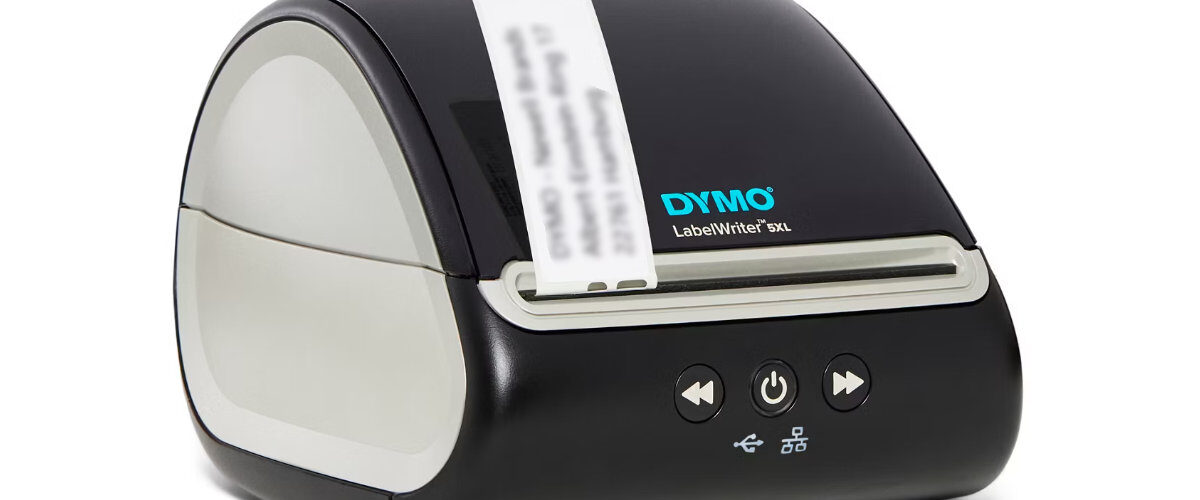
Applies to
Dymo LabelWriter 450 series, Dymo LabelWriter 550 series, Dymo LabelWriter 4XL, Dymo LabelWriter 5XL, Windows, macOS, Dymo Connect, label rolls, feed rollers, and direct thermal labels
Last updated
May 2026
Problem
Your Dymo LabelWriter makes clicking, ticking, grinding, or repeated feeding noises when you try to print. It may also fail to grip the label roll, pull labels in unevenly, stop halfway through feeding, or make a noise without moving the labels at all.
This usually points to a feeding problem rather than a software problem. The printer may be trying to pull the label into position, but the roll is not seated correctly, the first label is curled or damaged, the feed path is blocked, the roller is dirty, or part of a label is stuck inside the printer.
Solution
To fix a Dymo LabelWriter making clicking noises or failing to grip labels, remove and reload the label roll, check the spool alignment, inspect the feed path for torn labels, clean the rollers and print area, try a fresh label roll, and confirm the label size in Dymo Connect before printing again.
A small amount of movement or noise is normal when the printer feeds a label, but repeated clicking usually means the printer is trying and failing to move the labels properly.
Step by step instructions
Check whether the noise happens when feeding or printing
Start by working out when the clicking noise happens.
If the noise happens when you press the feed button, the issue is likely mechanical. If the printer feeds normally with the button but clicks only when printing from Dymo Connect, the issue may be linked to label size, print queue, or software settings.
Check the behaviour:
- The printer clicks when the feed button is pressed.
- The printer clicks only when printing from Dymo Connect.
- The printer pulls the label slightly, then stops.
- The printer feeds at an angle.
- The printer makes noise but does not move the label.
- The printer works with one roll but not another.
- The printer clicks after a label jam or roll change.
This first check helps you decide whether to focus on the roll and feed path or the software settings.
Remove the label roll
Open the top cover and remove the label roll from the printer.
Do not keep trying to print while the printer is clicking. Repeated attempts can make a jam worse, damage the first few labels, or leave adhesive residue in the feed path.
After removing the roll, check:
- The first label is not folded or curled.
- The label backing is not torn.
- The roll is not squashed.
- The labels are not peeling away from the backing.
- The roll is not sticky at the sides.
- There are no loose label pieces inside the printer.
If the roll looks damaged, set it aside and test with another roll later.
Reload the roll correctly
A Dymo LabelWriter may fail to grip labels if the roll is loaded the wrong way round or if the first label is not entering the feed slot correctly.
Reload the roll slowly and carefully.
Check the loading position:
- The labels feed from the bottom of the roll.
- The roll sits flat on the spool.
- The spool is seated properly in the printer.
- The label side is facing the correct direction.
- The first label enters the feed slot straight.
- The label is not curled upward or downward as it enters.
Feed the first label into the slot until the printer grips it. If it does not grip the label, do not force it too far inside.
Tighten the spool guide against the roll
If the label roll moves from side to side, the printer may struggle to grip the label consistently.
The spool guide should sit snugly against the roll. A loose roll can feed at an angle and cause clicking, slipping, or repeated feed attempts.
Check the spool:
- The roll is pushed firmly against the side of the spool.
- The guide is close to the label roll.
- There is no wide gap on the spool.
- The roll does not wobble from side to side.
- The labels feed straight into the printer.
Once the spool is aligned, press the feed button once and watch whether the printer grips the label cleanly.
Check for a label jam
A small torn label can cause repeated clicking because the feed rollers cannot move normally.
Open the cover and inspect the feed path. Look closely around the entry slot, roller area, and any visible internal path where labels pass through.
Look for:
- Torn label pieces.
- Backing paper stuck inside.
- Adhesive residue.
- Labels wrapped around a roller.
- Small paper fragments.
- Dust or debris.
- Labels stuck under the cover.
Remove any loose material gently. Avoid sharp tools, blades, screwdrivers, or anything that could scratch the print head or damage the rollers.
Check for adhesive residue
Adhesive residue can make labels stick or slip as they feed.
This often happens after a label jam, after using damaged labels, or when labels have been stored in heat. The printer may click because the roller is trying to pull the label through but the label is sticking inside the feed path.
Check for signs of residue:
- Sticky patches near the feed slot.
- Labels sticking as they enter the printer.
- Labels peeling away from the backing.
- Uneven feeding.
- Clicking after a jam.
- Labels stopping in the same place each time.
If residue is visible, clean the feed path carefully before printing again.
Clean the feed rollers and label path
Dirty rollers can stop the printer gripping labels properly.
Use a Dymo cleaning card if you have one. If not, use a lint-free cloth lightly dampened with isopropyl alcohol. Clean gently around the feed path and roller area.
Cleaning tips:
- Use only a small amount of liquid on the cloth.
- Do not pour liquid into the printer.
- Do not scrape the rollers.
- Do not use sharp tools.
- Let the printer dry fully before testing.
- Run a feed test before printing a full label.
After cleaning, reload the label roll and press the feed button once.
Try a fresh label roll
If the printer still clicks or fails to grip labels, try another roll.
A damaged or poorly wound roll can cause feeding problems even when it looks mostly normal. The printer may work perfectly with one roll and fail with another.
Try a roll that is:
- Not squashed.
- Not curled.
- Not heat damaged.
- Not damp.
- Not peeling from the backing.
- Compatible with your LabelWriter model.
- Stored in its original packaging.
If a fresh roll feeds correctly, the original roll was likely the problem.
Check the first few labels on the roll
Sometimes only the first few labels are damaged.
This can happen if the roll has been taped, handled, dropped, or stored loose. A curled or damaged first label may fail to grip, while the rest of the roll is fine.
Check the first few labels for:
- Curled corners.
- Torn backing.
- Folded edges.
- Adhesive on the front or back.
- Labels lifted from the backing.
- Dirt or dust.
- Damage from packaging tape.
If needed, remove the damaged label cleanly and feed the next good label into the printer.
Check whether the feed button works
The feed button is useful because it tests the printer without involving Dymo Connect.
Press the feed button once after reloading the roll.
If the printer feeds a label normally, the grip mechanism is working. The issue may be with label size, template settings, print queue, or the job being sent from software.
If the printer clicks and does not feed, the issue is more likely physical, such as the roll, rollers, feed path, or internal mechanism.
Confirm the label size in Dymo Connect
If the printer grips labels normally with the feed button but struggles when printing, check the selected label size.
An incorrect label size can make the printer feed too far, stop early, or behave as if it cannot align the label correctly.
In Dymo Connect, check:
- The selected label size matches the roll.
- The correct printer is selected.
- The print preview looks correct.
- The label orientation is right.
- The design is not spread across more than one label.
- No old template is being reused incorrectly.
Create a new simple test label and print one label only.
Clear the print queue
A stuck print job can cause repeated failed feeding attempts.
On Windows, open Settings, then Bluetooth and devices, then Printers and scanners. Select the Dymo LabelWriter and open the print queue. Cancel any stuck or failed jobs.
On macOS, open System Settings, then Printers and Scanners. Select the Dymo LabelWriter and open the print queue. Remove any waiting or failed jobs.
After clearing the queue:
- Close Dymo Connect.
- Reopen Dymo Connect.
- Select the correct label size.
- Print a basic test label.
This prevents the printer from repeatedly trying to process a bad job.
Check LabelWriter 550 roll compatibility
If you are using a LabelWriter 550 series printer, check that the roll is compatible with that series.
If the printer cannot detect the roll correctly, it may behave unexpectedly or fail to prepare the label properly. This is different from a simple grip problem, but it can appear at the same time as feeding issues.
Check:
- The roll is compatible with the 550 series.
- The roll is seated correctly.
- The labels feed from the bottom.
- The spool guide is tight against the roll.
- Dymo Connect detects the label type.
- The detected label size matches the roll.
If the roll is not detected, reload it and restart Dymo Connect.
Avoid forcing labels into the printer
If the printer is not gripping the label, it can be tempting to push the label deeper into the slot.
Avoid forcing labels too far inside. This can bend the label, create a jam, or cause the printer to grip the backing unevenly.
Use a gentle approach:
- Insert the label straight.
- Let the printer pull it in.
- Remove and reload if it does not grip.
- Do not push several labels inside.
- Do not pull the label backwards once gripped.
- Do not keep pressing print while it is clicking.
If the printer repeatedly fails to grip a correctly loaded roll, test with another roll and clean the feed path.
Test the printer without the computer
The feed button gives you a basic hardware test.
Disconnect the USB cable but leave the printer powered on. Load the roll correctly and press the feed button.
If the printer feeds properly without the computer connected, the printer mechanism is probably working. Reconnect the USB cable and check Dymo Connect, label size, and print queue.
If the printer still clicks without the computer connected, the issue is almost certainly physical rather than software related.
Consider wear or hardware failure
If the LabelWriter is older or heavily used, repeated clicking may indicate worn rollers, a failing motor, or internal damage.
This is more likely if:
- The printer clicks with every roll.
- Cleaning does not help.
- The feed button fails.
- The printer cannot grip any label.
- The noise has gradually worsened.
- Labels consistently stop at the same point.
- The printer has had several jams or drops.
If the printer fails with multiple known good rolls and a clean feed path, it may need repair or replacement.
Optional methods or tools
- Use the feed button to test whether the issue is mechanical or software related.
- Use a Dymo cleaning card to clean the feed path and rollers.
- Try a fresh label roll to rule out damaged or curled labels.
- Use a lint-free cloth and a small amount of isopropyl alcohol for careful cleaning.
- Use Windows Printers and scanners or macOS Printers and Scanners to clear stuck jobs.
- Use Dymo Connect to create a plain text test label.
- Try another computer if the printer feeds normally but fails when printing.
- Download the latest Dymo software from https://www.dymo.com/support?cfid=user-guide if the feed button works but software printing fails.
Best practices or tips
- Do not keep sending print jobs while the printer is clicking.
- Load labels so they feed from the bottom of the roll.
- Keep the spool guide snug against the label roll.
- Remove torn labels and adhesive residue as soon as possible.
- Store label rolls in their packaging to prevent curling and dust.
- Use the feed button after loading a new roll.
- Avoid forcing labels into the feed slot.
- Clean the feed path regularly if the printer is used heavily.
A Dymo LabelWriter making clicking noises or failing to grip labels is usually dealing with a label feeding problem. The most common causes are a loose roll, incorrect loading, damaged first labels, sticky residue, torn label pieces, dirty rollers, or a label roll that is not feeding straight into the printer.
Once the printer can feed a label cleanly using the feed button, you can move on to testing Dymo Connect, label size settings, templates, and print queues. If the printer still clicks with a clean feed path and several known good rolls, the issue may be wear or hardware failure rather than a normal setup problem.


