
Troubleshooting Samsung Frame TV Art Mode: not loading, stuck, or “temporarily unavailable”
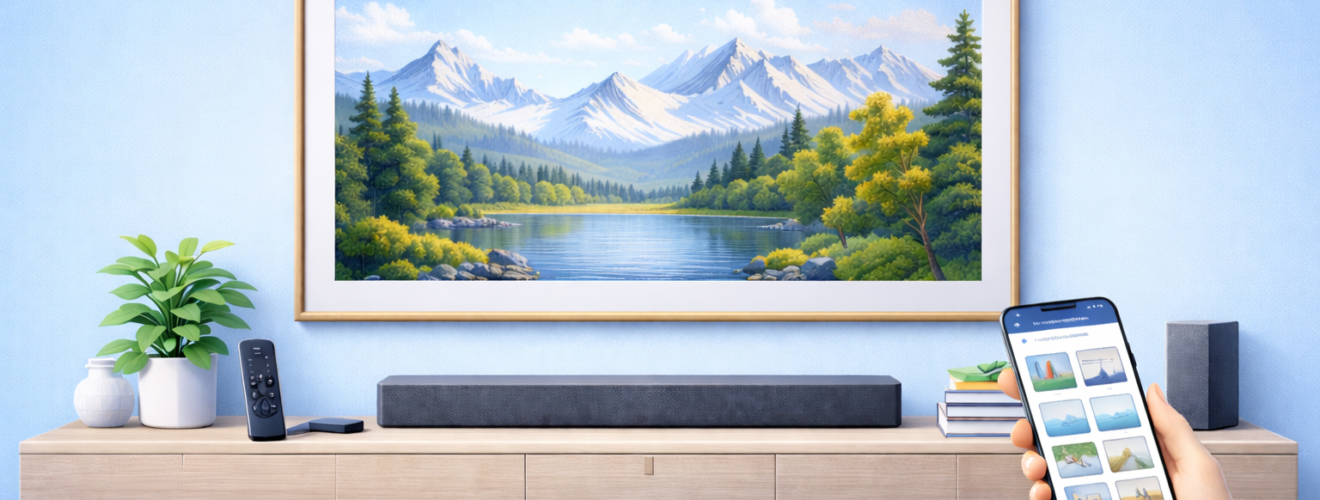
Applies to: Samsung The Frame TV (models with Art Mode, One Connect Box and Samsung Art Store)
Last updated: 27 January 2026
Problem
Art Mode on your Samsung Frame TV does not load correctly. You may see a black screen, a loading spinner that never finishes, artwork that disappears, or a message saying Art Mode is “temporarily unavailable.” In some cases, Art Mode works intermittently or fails after a software update, network change or power cut. You want a clear set of steps to get Art Mode working again without factory resetting the TV unless absolutely necessary.
Solution
Most Art Mode problems are caused by network connectivity issues, Samsung account problems, corrupted cached data, or temporary software glitches. By checking your internet connection, signing back into your Samsung account, restarting the TV and One Connect Box properly, and refreshing Art Mode settings, you can usually restore normal operation. Only in rare cases is a full reset required.
Step-by-step instructions
Check your internet connection first
Art Mode relies on an active internet connection, especially for Art Store content.
- Press Home on the remote.
- Go to Settings > General > Network > Network Status.
- Confirm the TV shows a successful connection to the internet.
- If the connection fails, restart your router and wait until it is fully online.
- Recheck network status on the TV before testing Art Mode again.
If you use Wi Fi and have frequent dropouts, consider switching to wired Ethernet via the One Connect Box.
Restart the TV and One Connect Box correctly
A proper power restart clears many Art Mode glitches.
- Turn the TV off using the remote.
- Unplug the One Connect Box from the mains power.
- Wait at least 30 seconds.
- Plug the One Connect Box back in and wait for the TV to fully boot.
- Turn the TV on and switch to Art Mode again.
Avoid quick on off cycles. Always remove power fully during a restart.
Check Samsung account sign in status
Art Mode and the Art Store require a valid Samsung account.
- Press Home and go to Settings > General > System Manager > Samsung Account.
- Confirm you are signed in.
- If signed out, sign back in using your email and password.
- If already signed in, sign out completely, restart the TV, then sign in again.
- Return to Art Mode and check whether artwork loads correctly.
Account authentication problems are a common cause of “temporarily unavailable” messages.
Test with built in sample artwork
This helps determine whether the issue is with downloaded art or Art Mode itself.
- Open Art Mode.
- Select a built in or preloaded artwork rather than one downloaded from the Art Store.
- Apply it and wait a few seconds.
- If built in art displays correctly but downloaded art does not, the issue is likely network or account related.
Clear and refresh Art Mode data
- Open Settings > Apps > Art Mode or Art Store (menu names vary by model).
- Select Clear cache if the option is available.
- Do not clear app data unless instructed, as this may remove downloaded artwork.
- Restart the TV and re open Art Mode.
If cache clearing is not available on your model, a full power restart often achieves the same result.
Check software updates
Firmware updates often fix Art Mode stability issues.
- Go to Settings > Support > Software Update.
- Select Update Now.
- If an update is available, install it and allow the TV to reboot.
- After updating, open Art Mode and test again.
Avoid interrupting the TV during updates, as incomplete updates can cause app failures.
Verify date, time and region settings
Incorrect system settings can interfere with online services.
- Open Settings > General > System Manager > Time.
- Set the time and date to automatic if possible.
- Check Location or Service Region settings and confirm they match your country.
- Restart the TV after making changes.
Test Art Mode sensor behaviour
In some cases, Art Mode appears broken when it is actually turning off due to sensor settings.
- Go to Settings > General > Power and Energy Saving.
- Check Motion Sensor and Art Mode Motion Detection settings.
- Temporarily disable motion detection for testing.
- Open Art Mode and confirm artwork stays on screen.
- Re enable motion detection once confirmed working.
Optional methods or tools
- Temporary wired connection
If Art Mode fails over Wi Fi, connect an Ethernet cable directly to the One Connect Box to rule out wireless interference. - SmartThings app
Use the SmartThings app to switch Art Mode on and off and change artwork. If it works in the app but not on the TV, the issue may be with the remote or on screen interface. - Soft reset using remote
On some models, holding the power button on the remote until the TV restarts performs a deeper reset than a normal power off.
Best practices or tips
- Keep the TV connected to the internet even if you mostly use downloaded artwork.
- Avoid unplugging the One Connect Box frequently unless troubleshooting.
- After software updates, check Art Mode settings as they may reset to defaults.
- Use stable power outlets and avoid smart plugs that cut power aggressively, as this can corrupt cached app data.
- If Art Mode problems return repeatedly, note whether they occur after network changes or power outages.
Art Mode issues on the Samsung Frame TV are frustrating because they undermine the main reason people buy the TV. In most cases, the problem is not the screen itself but a temporary loss of connection, account authentication failure or cached app issue. By methodically checking network status, restarting the One Connect Box properly and confirming your Samsung account is signed in, you can usually restore Art Mode without drastic measures.
Once Art Mode is stable again, it tends to remain reliable as long as the TV stays updated and connected. If you move house, change routers or experience a power cut, it is worth revisiting these steps early rather than assuming the TV is faulty. Keeping Art Mode healthy ensures the Frame continues to behave like art first and a television second, exactly as it was designed to do.


