
Tips for using the Samsung Frame TV as a regular TV and as wall art without annoying brightness or reflections
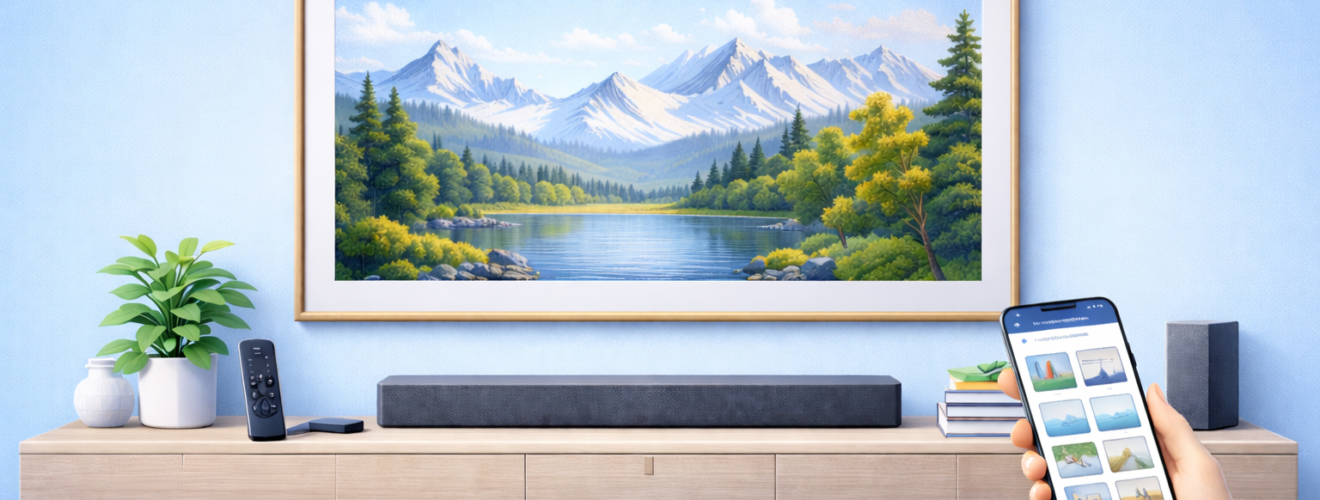
Applies to: Samsung The Frame TV (models with Art Mode, anti-reflection display and One Connect Box)
Last updated: 27 January 2026
Problem
The Samsung Frame TV looks great as wall art, but when you actually sit down to watch TV it can feel too dim, too bright, or reflective depending on the time of day. Switching between Art Mode and normal TV viewing can feel inconsistent, with brightness jumping, colours changing or reflections becoming distracting. You want a setup that works well both as a television and as framed artwork without constantly adjusting settings.
Solution
The key to using the Samsung Frame successfully in both roles is separating Art Mode behaviour from TV viewing behaviour. Art Mode should be tuned for realism and low brightness, while TV mode should prioritise visibility, contrast and comfort. By configuring picture modes, brightness controls, sensor behaviour and reflection management correctly, the Frame can switch roles smoothly without drawing attention to itself.
Step-by-step instructions
Separate Art Mode and TV picture settings
- Switch the TV into normal TV mode.
- Go to Settings > Picture.
- Choose a picture mode suitable for viewing, such as Standard, Movie or Filmmaker Mode.
- Adjust brightness, contrast and colour to a comfortable level for watching TV.
- Save these settings and confirm they apply only to TV viewing.
- Switch back into Art Mode.
- Open Art Mode Settings and adjust brightness independently so artwork looks natural and non-glowing.
Art Mode brightness does not affect TV picture modes, so treat them as two separate profiles.
Manage brightness changes between day and night
- In Art Mode, enable Auto Brightness or Light Sensor.
- Test artwork during daylight and in the evening to confirm it dims naturally.
- In TV mode, disable overly aggressive auto brightness if the picture fluctuates too much.
- If the TV looks too dim at night, slightly increase brightness in your chosen TV picture mode.
- Avoid setting TV brightness extremely high, as this exaggerates reflections.
Balanced brightness reduces eye strain and improves perceived contrast.
Reduce reflections during TV viewing
- Position seating so you are not directly opposite large windows or bright lamps.
- Close blinds or curtains during daytime viewing if reflections are distracting.
- Use soft, indirect lighting behind or beside the TV rather than harsh lights in front of it.
- Avoid placing shiny or reflective décor directly opposite the screen.
- If reflections remain noticeable, slightly lower TV brightness and increase contrast instead.
The Frame’s matte display reduces glare, but room layout still plays a major role.
Improve Art Mode realism without hurting TV quality
- Lower Art Mode brightness until artwork no longer looks illuminated.
- Choose warmer colour tones for art to match ambient lighting.
- Use neutral or warm digital mats rather than bright white ones.
- Avoid very vivid or high contrast artwork in brightly lit rooms.
- Confirm that switching back to TV mode restores your normal viewing picture profile.
Art Mode should feel subtle and static, not eye-catching like a TV.
Control how the TV switches between modes
- Open Settings > General > Power and Energy Saving.
- Enable Art Mode on Power Off if you want the TV to default to artwork.
- Adjust motion sensor timing so Art Mode turns off only when the room is truly empty.
- Disable unnecessary auto power off features that interrupt TV viewing.
- Test switching between TV and Art Mode using the remote to confirm behaviour feels predictable.
Reliable mode switching makes the Frame feel intentional rather than temperamental.
Use the right picture modes for different content
- Use Filmmaker Mode or Movie mode for films and TV drama.
- Use Standard or Dynamic mode for daytime sports or news if needed.
- Enable Game Mode automatically when consoles are active.
- Avoid using one picture mode for everything. The Frame benefits from tailored profiles.
- Recheck picture modes after software updates, as defaults can sometimes change.
Content-specific modes reduce the need for constant manual adjustment.
Optional methods or tools
- Bias lighting
A soft LED light strip behind the TV reduces perceived contrast issues and eye strain during evening viewing. - Room lighting zones
Using lamps instead of overhead lights gives you more control over reflections and brightness. - Scheduled Art Mode
Some users schedule Art Mode to activate only during certain hours for consistency.
Best practices or tips
- Treat Art Mode and TV mode as two different experiences with different goals.
- Never try to make Art Mode as bright as TV viewing. It breaks the illusion.
- If reflections bother you more than brightness, adjust room lighting before changing TV settings.
- Revisit settings seasonally as daylight and room lighting change throughout the year.
- Keep picture mode changes minimal once you find settings that work.
The Samsung Frame TV works best when you let it behave differently depending on how it is being used. Art Mode should disappear into the room, while TV mode should be comfortable and immersive. By clearly separating brightness, picture modes and sensor behaviour, you avoid the constant tweaking that frustrates many owners and instead get predictable, repeatable results.
With the right balance of lighting, picture settings and mode control, the Frame can feel like two products in one without compromise. During the day it blends in as artwork, and in the evening it becomes a capable television without harsh glare or awkward brightness shifts. Once tuned correctly, switching between art and entertainment becomes effortless and the TV finally behaves the way it was designed to.


