
How do I upload my own photos and artwork to the Samsung Frame TV using SmartThings and USB?
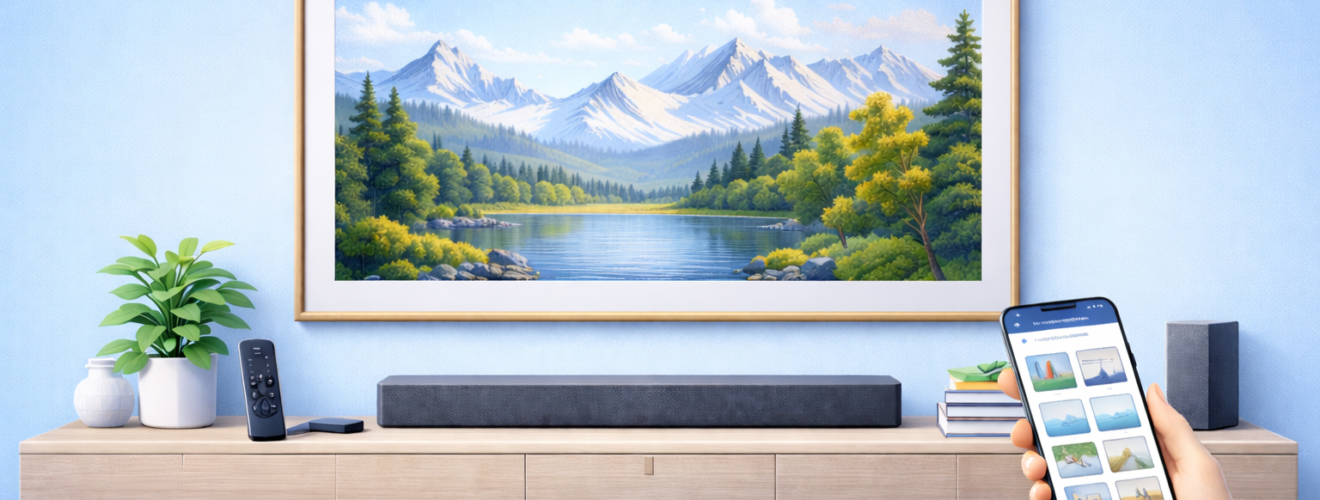
Applies to: Samsung The Frame TV (models with Art Mode, One Connect Box, SmartThings and USB support)
Last updated: 27 January 2026
Problem
You want to display your own photos, artwork or digital prints in Art Mode on your Samsung Frame TV, but you are unsure how to upload them correctly. Images may appear cropped, low quality or not show up at all, or you may not know whether to use the SmartThings app or a USB drive. You want clear steps to get your personal images onto the Frame so they look sharp, properly framed and natural on the wall.
Solution
The Samsung Frame TV allows you to upload your own images either wirelessly using the SmartThings app or directly using a USB drive connected to the One Connect Box. For best results, images should match the TV’s resolution, be in a supported format and use the correct aspect ratio. Once uploaded, you can apply mats and frame styles in Art Mode so your photos blend in with other artwork.
Step-by-step instructions
Prepare your images correctly
- Choose high quality images with good lighting and detail.
- Use a resolution that matches or exceeds your Frame TV’s native resolution to avoid softness.
- Use a 16:9 aspect ratio for full screen artwork, or leave extra border space if you plan to use digital mats.
- Save images in common formats such as JPEG or PNG.
- Avoid heavy compression or social media versions of images, as these often look poor on large screens.
If an image looks sharp on a phone but blurry on the TV, it is usually too low resolution.
Upload images using the SmartThings app
This is the most convenient method for most users.
- Install the SmartThings app on your phone or tablet.
- Sign in using the same Samsung account that is logged into your Frame TV.
- Make sure your phone and TV are on the same Wi Fi network.
- Open SmartThings and select your Samsung Frame TV.
- Go to Art Mode or Add Photos (menu names vary slightly).
- Select photos or artwork from your phone’s gallery.
- Upload the selected images to the TV.
- Wait for the transfer to complete, then confirm the images appear in Art Mode.
Large images may take a few moments to upload depending on your network speed.
Upload images using a USB drive
USB is useful if SmartThings is unreliable or if you want to upload many images at once.
- Copy your images onto a USB flash drive using a computer.
- Safely eject the USB drive once copying is complete.
- Plug the USB drive into a USB port on the One Connect Box.
- Turn on the TV and open Art Mode.
- Select Import or Add from USB.
- Browse the USB drive and select the images you want to import.
- Confirm the import and wait for the images to appear in Art Mode.
Once imported, the USB drive can be removed.
Apply mats and frame styles to your images
- In Art Mode, select one of your uploaded images.
- Open Style, Mat or Frame options.
- Choose a mat colour and width that suits the image and your room.
- Apply the changes and preview the result full screen.
- Save the settings so the image appears consistently in Art Mode.
Using mats helps images with unusual aspect ratios look more like real framed artwork.
Create collections or slideshows
- In Art Mode, create a collection or gallery.
- Add your uploaded images to the collection.
- Set how often images rotate, such as every few minutes or hours.
- Confirm the collection plays smoothly without abrupt brightness changes.
This is ideal if you want the Frame to cycle through family photos or a curated art set.
Optional methods or tools
- Professional image resizing
If you want the best possible look, resize and crop images on a computer using photo editing software before uploading. This gives you precise control over framing. - Dedicated Art Store artwork as a comparison
Compare your images with Samsung Art Store content to fine tune brightness and colour so your photos do not look out of place. - Cloud storage workflow
Store original high resolution images in cloud storage, then upload selected versions to the Frame as needed without repeatedly transferring files from a computer.
Best practices or tips
- Use original photos from cameras or high resolution scans rather than messaging app versions.
- Reduce brightness in Art Mode so personal photos do not look backlit like a TV.
- Match mat colours to your physical bezel for a more convincing picture frame effect.
- Avoid uploading hundreds of images at once. Keep collections curated for better performance.
- Revisit Art Mode brightness after uploading new images, as different photos respond differently to lighting.
Uploading your own photos and artwork is one of the most rewarding features of the Samsung Frame TV. When images are prepared properly and displayed with suitable mats and brightness settings, they can look indistinguishable from printed art on the wall. Taking a little extra time to choose high quality images and upload them cleanly pays off every time the TV switches into Art Mode.
Whether you use SmartThings for convenience or USB for bulk uploads, the Frame gives you flexibility in how you manage your personal gallery. With careful selection and styling, your own photos can sit seamlessly alongside classic artwork, making the TV feel personal rather than generic. Keeping images organised and refreshed over time helps the Frame remain a living part of your home rather than a static display.


