
Why is my Dymo LabelWriter not printing
Applies to
Dymo LabelWriter 450 series, Dymo LabelWriter 550 series, Dymo LabelWriter 4XL, Dymo LabelWriter 5XL, Windows, macOS, Dymo Connect, and Dymo Label Software
Last updated
May 2026
Problem
Your Dymo LabelWriter is connected to the computer, but nothing prints when you send a label. The printer may appear in Dymo Connect, but the label does not come out. It may also show as ready in Windows or macOS, but print jobs sit in the queue without printing.
In some cases, the printer feeds a blank label, prints only part of the label, flashes a status light, or works once and then stops again.
Solution
A Dymo LabelWriter that is not printing is usually caused by one of five things: a connection problem, a stuck print queue, the wrong printer being selected, incorrect label settings, or a problem with the label roll.
Start with the simple checks first. Confirm the printer has power, the USB cable is connected directly, the correct printer is selected in Dymo Connect, the label roll is loaded correctly, and there are no stuck jobs in the print queue. If that does not work, restart the computer, reinstall the Dymo software, and test with a basic label.
Step by step instructions
Check that the printer has power
Start with the physical printer before changing software settings.
Make sure the power cable is connected firmly to the LabelWriter and plugged into a working wall socket. Check that the power adapter is also fully connected, as many Dymo power supplies have a separate cable and adapter block.
Look for a light on the printer. If there is no light at all, the printer may not be receiving power. Try another wall socket and make sure the power adapter is the correct one for your LabelWriter model.
Check the USB connection
Make sure the USB cable is connected firmly at both ends.
For troubleshooting, connect the Dymo LabelWriter directly to the computer rather than using a USB hub, docking station, monitor USB port, or extension cable. LabelWriter printers can sometimes appear connected through a hub but fail to print reliably.
If possible, try another USB port on the computer. If the printer still does not respond, try another USB cable.
Confirm the correct printer is selected
Open Dymo Connect or Dymo Label Software and check which printer is selected.
If you have more than one printer installed, the software may be sending the label to the wrong device. This is especially common if there are old Dymo entries, duplicate printers, PDF printers, network printers, or previous versions of the same LabelWriter installed.
Choose the exact Dymo LabelWriter model from the printer list, then try printing again.
Check whether the printer appears offline
On Windows, open Settings, then Bluetooth and devices, then Printers and scanners. Select the Dymo LabelWriter and open the print queue.
On macOS, open System Settings, then Printers and Scanners. Select the Dymo LabelWriter and check whether it is available.
If the printer shows as offline, unplug the USB cable, turn the printer off if your model has a power switch, wait a few seconds, reconnect the printer, and reopen the Dymo software.
Clear the print queue
A stuck print job can stop new labels from printing.
On Windows, go to Settings, then Bluetooth and devices, then Printers and scanners. Select the Dymo LabelWriter and open the print queue. Cancel any stuck or paused jobs.
On macOS, go to System Settings, then Printers and Scanners. Select the LabelWriter and open the print queue. Delete any waiting jobs.
After clearing the queue, close the Dymo software, reopen it, and print a simple test label.
Restart the Dymo software
Close Dymo Connect or Dymo Label Software completely.
Reopen the software and check whether the printer appears. If the software had lost communication with the printer, restarting it may restore the connection.
If the printer still does not print, restart the computer while the printer is connected and powered on.
Check the label roll
Open the LabelWriter cover and check that the label roll is installed correctly.
The labels should feed from the bottom of the roll into the printer. The roll should sit tightly against the spool guide, not loose or angled. If the roll is not seated correctly, the printer may fail to feed, feed unevenly, or stop after one label.
Remove the roll, reload it carefully, and feed the first label into the printer until the printer grips it.
Press the feed button
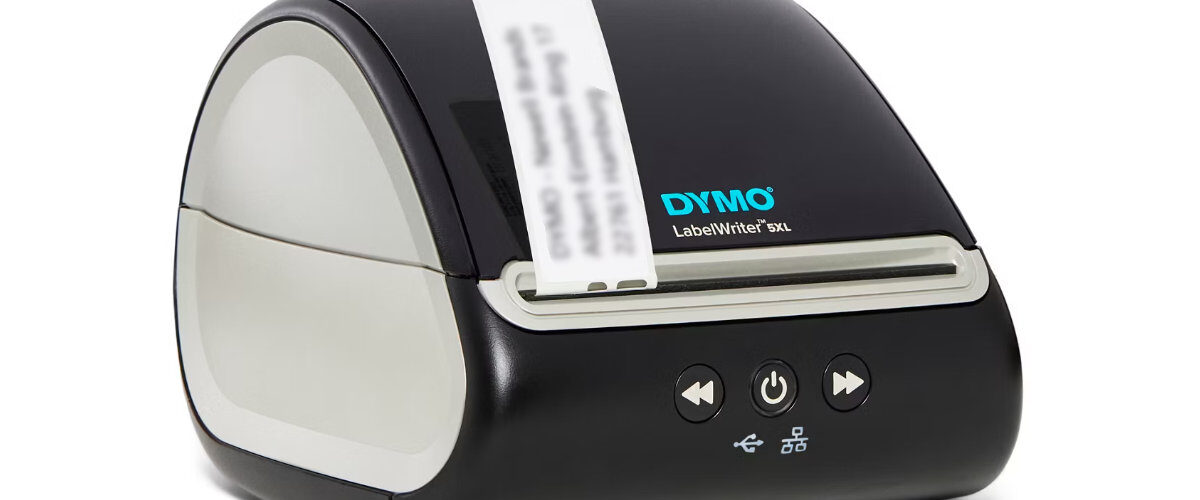
Press the feed button on the printer once.
If the printer feeds a label, the printer mechanism is working and the issue is likely software, driver, print queue, or label size related.
If the printer does not feed a label, check the label roll again. Make sure labels are not jammed, torn, curled, or stuck inside the printer.
Check for a label jam
Open the printer cover and inspect the feed path.
Look for torn labels, adhesive residue, or labels stuck inside the printer. Even a small torn piece of label can prevent printing or feeding.
If you see a stuck label, gently remove it. Do not use sharp tools inside the printer, as this can damage the print head or rollers.
After removing the jam, reload the roll and press the feed button to test feeding.
Choose the correct label size
Open the label design in Dymo Connect and check the selected label size.
If the software is set to the wrong label size, the printer may behave unpredictably. It may print blank labels, skip labels, print only part of the design, or appear not to print at all.
Select the label template that matches the physical label roll in the printer. If you are using address labels, choose the correct address label size. If you are using shipping labels, choose the matching shipping label size.
Create a basic test label
Create a new simple label with plain text only.
Do not use imported contacts, barcodes, logos, templates from another computer, or shipping platform integrations for the first test.
Type a short phrase such as Test Label, select the correct printer, select the correct label size, and click Print.
If the simple test label works, the problem may be with the original label design, template, imported data, or third-party application.
Check whether another application can print
Try printing from the Dymo software first rather than from another app, website, postage platform, marketplace, or browser.
If Dymo Connect prints correctly but another application does not, the printer itself is working. The issue is likely with the third-party software, browser print settings, label format, page size, or printer selection in that application.
Return to the third-party software and check that the correct Dymo LabelWriter and label size are selected.
Restart the computer and printer
Restarting is a simple but effective step when a LabelWriter stops printing.
Close all Dymo software, disconnect the USB cable, restart the computer, reconnect the printer, then open Dymo Connect again.
This can clear temporary driver issues, stuck print services, and communication problems between the operating system and printer.
Reinstall the Dymo software
If the printer still will not print, reinstall the Dymo software.
First, remove old or duplicate Dymo printers from Windows Printers and scanners or macOS Printers and Scanners. Then download the latest software from the official Dymo support page:
Install the software, restart the computer, reconnect the printer directly by USB, and print a basic test label.
Check label compatibility on LabelWriter 550 models
If you are using a Dymo LabelWriter 550 series printer, check that the labels are compatible with that model.
The LabelWriter 550 series is designed to detect compatible Dymo label rolls. If the printer does not detect the roll, it may refuse to print or may not show the label type correctly in the software.
Remove and reload the roll. If the software still does not detect the labels, try a known compatible roll.
Optional methods or tools
- Use Windows Printers and scanners or macOS Printers and Scanners to check whether the printer is installed.
- Use the print queue to cancel stuck or paused print jobs.
- Try another USB port or USB cable if the printer is detected but does not print.
- Press the feed button to confirm whether the printer can physically feed labels.
- Use Dymo Connect to test printing before testing from third-party software.
- Download the latest Dymo software from https://www.dymo.com/support?cfid=user-guide
- Test with a basic text label to separate printer problems from template or application problems.
- Try a known working roll of labels if the printer feeds incorrectly or prints blank labels.
Best practices or tips
- Keep the LabelWriter connected directly to the computer when troubleshooting.
- Clear the print queue before reinstalling software.
- Remove duplicate Dymo printer entries to avoid printing to the wrong device.
- Always match the selected label template to the physical label roll.
- Keep labels stored away from heat, sunlight, and moisture.
- Avoid pulling labels while the printer is feeding.
- Reload the label roll if labels feed at an angle or stop after one label.
- Keep a spare USB cable and spare label roll available for testing.
A Dymo LabelWriter that is not printing is usually not completely broken. In most cases, the cause is a stuck print queue, wrong printer selection, poor USB connection, incorrect label size, badly loaded label roll, or outdated Dymo software. Working through each of these areas in order will normally identify the problem quickly.
Once the printer can feed labels and print a simple test label from Dymo Connect, you can move on to testing more complex label designs, address books, barcodes, shipping platforms, and other applications. Keeping the setup simple during troubleshooting makes it much easier to see whether the issue is with the printer, the computer, the labels, or the software being used to print.


