
How to fix poor barcode scanning from Dymo LabelWriter labels
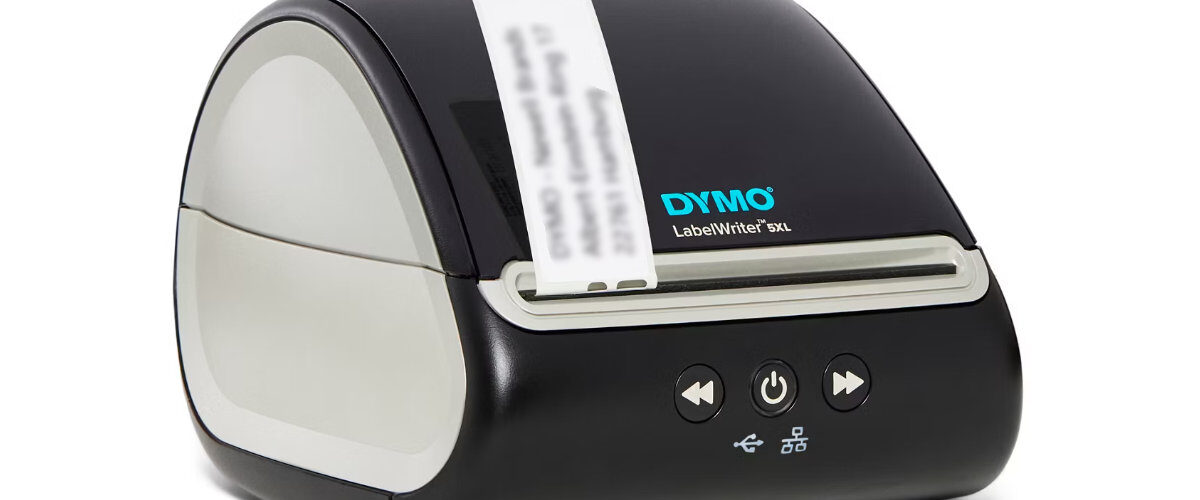
Applies to
Dymo LabelWriter 450 series, Dymo LabelWriter 550 series, Dymo LabelWriter 4XL, Dymo LabelWriter 5XL, Windows, macOS, Dymo Connect, Dymo Label Software, barcode labels, product labels, stock labels, shipping labels, and asset labels
Last updated
May 2026
Problem
Your Dymo LabelWriter prints barcode labels, but the barcode does not scan reliably. The barcode may only scan from certain angles, fail on some scanners, work on a phone but not a handheld scanner, or scan correctly on screen but not after printing.
This is a common issue when the barcode is too small, too compressed, too close to the label edge, printed on poor-quality labels, affected by dirt on the print head, or created using the wrong barcode type. The LabelWriter may be printing normally, but the barcode itself may not be clear enough for the scanner to read.
Solution
To fix poor barcode scanning from Dymo LabelWriter labels, make the barcode larger, choose the correct barcode type, use a clean template, improve spacing around the barcode, check print quality, clean the print head, and test the printed label with the scanner you actually intend to use.
A barcode that looks acceptable to the human eye may still fail when scanned. Barcode scanners need clear contrast, accurate line spacing, enough quiet space around the barcode, and a label surface that is not damaged, faded, shiny, curved, or poorly aligned.
Step by step instructions
Check whether the barcode scans on screen
Start by checking whether the barcode itself is valid before blaming the printer.
Open the barcode design in Dymo Connect and try scanning it directly from the screen using a phone or scanner if possible. This is not a perfect test, but it can help confirm whether the barcode contains readable data.
If the barcode does not scan on screen, the problem is likely with the barcode type, data format, or template. If it scans on screen but not when printed, the issue is more likely print quality, size, spacing, label surface, or scanner compatibility.
Check the barcode type
Different barcode types are used for different purposes. If the wrong barcode type is chosen, the barcode may print correctly but not work with your scanner, stock system, till system, warehouse system, or shipping platform.
Common examples include:
- Code 128 for general-purpose alphanumeric barcodes.
- Code 39 for simpler stock or asset labels.
- EAN-13 for retail product codes.
- UPC-A for retail products in some regions.
- QR codes for web links, text, or compact data.
- Data Matrix for small labels and dense information.
- ITF barcodes for certain logistics and packaging uses.
If your barcode needs to work with a specific platform, scanner, or stock system, check which barcode format that system expects.
Make the barcode larger
A barcode that is too small may look neat on the label but fail when scanned.
Small barcodes are especially problematic on narrow labels, curved surfaces, product packaging, and labels that are handled frequently. Thermal printers can produce clear labels, but barcode line width still needs to be large enough for the scanner.
Try the following:
- Increase the barcode width.
- Increase the barcode height.
- Avoid squeezing the barcode to fit a small label.
- Use a larger label size if the barcode is too cramped.
- Print one test label after resizing.
- Scan from the normal working distance.
If increasing the barcode size fixes the issue, the original barcode was probably too small or too compressed.
Avoid stretching or compressing the barcode
Resizing a barcode unevenly can make it hard to scan.
If you drag only one side of the barcode object or force it into a narrow area, the spacing between bars can become distorted. A barcode scanner relies on accurate spacing, so a visually small change can make the barcode unreadable.
When resizing:
- Keep the barcode proportions sensible.
- Avoid making it unusually narrow.
- Avoid making it extremely short.
- Do not squash the barcode to fit around logos or text.
- Use a larger label if the barcode does not fit.
- Recreate the barcode object if the existing one looks distorted.
If in doubt, delete the barcode from the template and create a fresh one using the correct barcode type.
Leave enough quiet space around the barcode
Barcodes need blank space around them. This is often called quiet space.
If text, borders, logos, label edges, or other objects are too close to the barcode, scanners may struggle to identify where the barcode starts and ends.
Check the design carefully:
- Leave clear space to the left and right of the barcode.
- Avoid placing text directly against the barcode.
- Do not place borders tight around the barcode.
- Keep the barcode away from the label edge.
- Avoid overlapping objects.
- Make sure the barcode is not cropped in the preview.
If the label is small, remove unnecessary design elements so the barcode has more room.
Check the print preview
Before printing, check the label preview in Dymo Connect.
The barcode should appear fully inside the label area with no cropping. If the barcode is partly outside the printable area or too close to the boundary, it may print incomplete or distorted.
Look for:
- Cropped barcode edges.
- Barcode too close to the label edge.
- Barcode overlapping text.
- Barcode rotated unexpectedly.
- Barcode printed across two labels.
- Wrong label size selected.
- Blank space where the barcode should be.
If the preview looks wrong, fix the template before printing again.
Select the correct label size
The label size in Dymo Connect must match the physical label roll loaded in the printer.
If the wrong label size is selected, the barcode may print too small, in the wrong position, partly cropped, or across label gaps. Even a small mismatch can affect scanning.
Check:
- The physical label roll.
- The selected template in Dymo Connect.
- The printer model selected.
- The label orientation.
- The print preview.
- The final print position.
After correcting the label size, print one test label and scan it before printing a full batch.
Use a plain barcode test label
To rule out design problems, create a clean test label with only one barcode.
Do not include logos, borders, long text blocks, small fonts, imported fields, or complex layouts for the first test.
Use this simple approach:
- Open a new blank label.
- Select the correct label size.
- Add one barcode.
- Enter a short valid test value.
- Make the barcode large enough to scan easily.
- Print one label.
- Test it with your scanner.
If the plain test barcode scans correctly, the original label design is likely too crowded, too small, or incorrectly laid out.
Check the barcode data
Some barcode types only accept certain characters or lengths.
For example, a barcode may fail if it contains unsupported symbols, spaces, leading zeros that are not handled correctly, or data that does not match the expected format of the scanner or software system.
Check for:
- Incorrect product code length.
- Missing leading zeros.
- Extra spaces before or after the code.
- Unsupported characters.
- Wrong barcode format.
- Barcode value not matching the system record.
- Copy and paste errors.
If the printed barcode scans but returns the wrong value, the issue is with the data rather than the printer.
Clean the print head
A dirty thermal print head can cause faint lines, gaps, or uneven printing. These defects may not matter much for plain text, but they can make a barcode unreadable.
Inspect the printed barcode closely. Look for missing vertical lines, faded areas, white streaks, or uneven darkness.
Clean the printer using:
- A Dymo cleaning card if available.
- A lint-free cloth.
- A small amount of isopropyl alcohol on the cloth.
- Gentle pressure only.
- Time for the printer to dry before printing again.
Do not scrape the print head with sharp tools. Even small damage to the print head can affect barcode quality.
Check for faded or patchy printing
Barcodes need strong contrast. If the print is faint, patchy, or grey rather than dark, the scanner may not read it reliably.
Check the printed label under good light and compare it with a clean, sharp barcode that scans correctly.
Look for:
- Faint black areas.
- Missing lines.
- Uneven darkness.
- White streaks through the barcode.
- Smudged or dusty label surface.
- Heat-damaged labels.
- Old or poor-quality label rolls.
If print quality is poor across all labels, clean the printer and try a fresh label roll.
Try a different label roll
Poor barcode scanning can be caused by the label material rather than the barcode design.
Thermal labels can degrade if stored badly. Heat, sunlight, damp conditions, dust, or age can reduce print contrast and make barcodes less readable.
Test with a known good label roll.
Check whether the current roll has:
- Faded printing.
- A shiny or uneven surface.
- Curling edges.
- Dust or residue.
- Heat damage.
- Adhesive leakage.
- Poor contrast after printing.
If a different roll scans correctly, replace the original roll.
Check the label surface after application
A barcode may scan well before the label is applied but fail after it is stuck to an item.
This happens when the label is placed on a curved, uneven, shiny, dirty, or flexible surface. The barcode may bend, wrinkle, or reflect light.
Check the final label placement:
- Avoid curved surfaces where possible.
- Avoid placing barcodes over seams.
- Avoid wrinkled or bubbled labels.
- Avoid dirty or dusty surfaces.
- Avoid placing barcodes around corners.
- Keep the barcode flat and fully visible.
For small bottles, cables, tools, or curved packaging, consider using a larger label or a different barcode type such as a QR code or Data Matrix if supported.
Test with the real scanner
A barcode that works with one scanner may not work with another.
Phone cameras, handheld scanners, tills, warehouse scanners, and shipping systems may all behave differently. Some scanners support fewer barcode types or need better print quality.
Test with the scanner that will actually be used in daily work.
Check:
- Does it scan from the usual distance?
- Does it scan under normal lighting?
- Does it scan once the label is applied?
- Does it scan quickly or only after several attempts?
- Does it return the correct value?
- Does it work with the system receiving the scan?
If it scans on a phone but not on the workplace scanner, check the scanner’s supported barcode types and settings.
Avoid overcomplicating the label
A crowded label can reduce barcode reliability.
If the label includes a logo, address, product name, price, instructions, batch number, and barcode, the barcode may have been reduced too much to fit everything in.
Improve the layout by:
- Making the barcode the priority.
- Removing unnecessary borders.
- Moving text away from the barcode.
- Using a larger label.
- Reducing logo size.
- Keeping the barcode flat and central.
- Avoiding tiny barcodes on small labels.
The barcode should be treated as a functional part of the label, not just a design element.
Check third-party generated barcodes
If the barcode is created by a shipping platform, stock system, marketplace, or browser-based tool, the issue may come from the generated label rather than Dymo Connect.
The barcode may be low resolution, scaled incorrectly, or printed through the wrong page size.
Check the third-party tool for:
- Correct printer selected.
- Correct label size.
- No print scaling.
- No fit-to-page distortion.
- Correct orientation.
- High-quality label output.
- No browser shrink setting.
- No PDF page size mismatch.
If possible, print the same barcode from Dymo Connect as a comparison.
Optional methods or tools
- Use Dymo Connect to create a plain barcode test label.
- Use a known working scanner to compare results.
- Use a phone barcode scanner app as a quick secondary check.
- Use a Dymo cleaning card to clean the print head.
- Try a new label roll if print contrast looks poor.
- Use a larger label size if the barcode is too cramped.
- Check Windows or macOS print settings if printing from a browser or third-party system.
- Download the latest Dymo software from https://www.dymo.com/support?cfid=user-guide if barcode objects or templates behave incorrectly.
Best practices or tips
- Make barcodes large enough to scan from the normal working distance.
- Leave clear blank space around the barcode.
- Avoid stretching or compressing barcode objects.
- Use the barcode type expected by your scanner or system.
- Test printed labels with the scanner that will be used in real life.
- Keep the print head clean to avoid missing barcode lines.
- Store thermal labels away from heat, sunlight, and moisture.
- Avoid placing barcodes on curved, wrinkled, shiny, or dirty surfaces.
Poor barcode scanning from Dymo LabelWriter labels is usually caused by barcode size, spacing, print quality, label material, scanner compatibility, or the surface the label is applied to. The printer may be working correctly, but the barcode must still be large, clear, high contrast, and correctly formatted for the scanner.
The best way to fix barcode issues is to simplify the label, enlarge the barcode, leave enough blank space, clean the print head, and test with the actual scanner used in your workflow. Once the barcode scans reliably on a plain test label, you can rebuild the full label design with more confidence for stock labels, product labels, asset tags, shipping labels, and inventory systems.


