
How to choose the right label roll for a Dymo LabelWriter
Applies to
Dymo LabelWriter 450 series, Dymo LabelWriter 550 series, Dymo LabelWriter 4XL, Dymo LabelWriter 5XL, Dymo Connect, address labels, shipping labels, barcode labels, file labels, and name badge labels
Last updated
May 2026
Problem
You need to buy or load labels for your Dymo LabelWriter, but you are not sure which roll is right for your printer or task.
Choosing the wrong label roll can cause printing problems, poor alignment, blank labels, roll detection issues, or labels that are too small for the information you need to print.
Solution
Choose the label roll based on your printer model, the job you want to do, the label size required, and whether your LabelWriter model needs specific compatible Dymo labels.
Step by step instructions
Check your LabelWriter model
Start by checking the exact model of your printer.
Common models include:
- Dymo LabelWriter 450
- Dymo LabelWriter 450 Turbo
- Dymo LabelWriter 4XL
- Dymo LabelWriter 550
- Dymo LabelWriter 550 Turbo
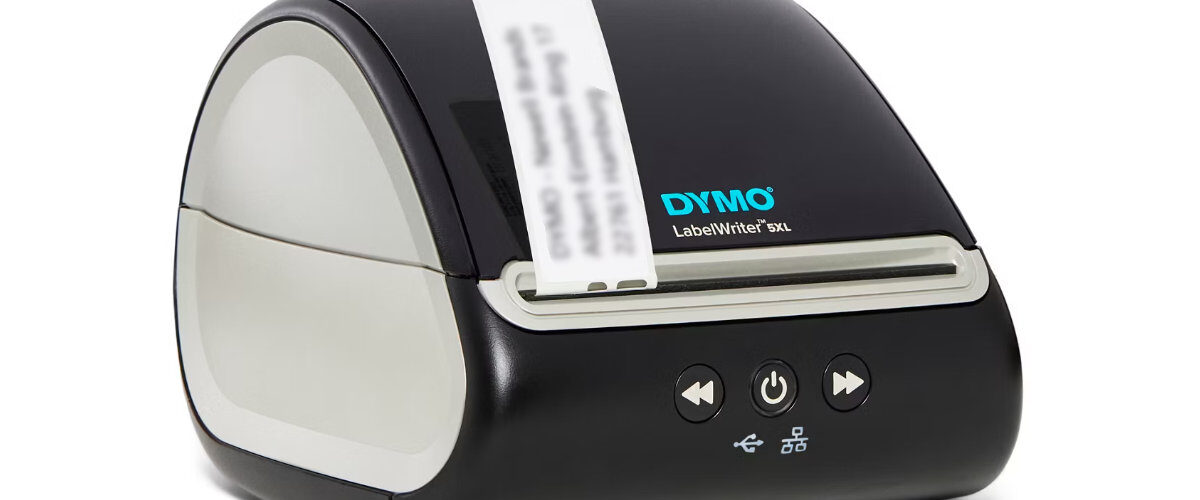
- Dymo LabelWriter 5XL
This matters because larger shipping labels usually need a larger model, and LabelWriter 550 series printers have stricter label compatibility.
Choose labels based on the task
Pick the label type that matches what you want to print.
Common choices include:
- Address labels for envelopes and small parcels.
- Shipping labels for courier and postage labels.
- File folder labels for filing cabinets and office folders.
- Barcode labels for products, stock, and assets.
- Name badge labels for visitors and events.
- Multipurpose labels for general labelling.
Choose the label size
Make sure the label is large enough for the information you need.
For example, a short return address can fit on a small address label, but a courier label with barcode and tracking details usually needs a larger shipping label.
Check printer compatibility
Before buying labels, check that the roll is compatible with your LabelWriter model.
This is especially important for LabelWriter 550 series printers, as they are designed to detect compatible label rolls. If the roll is not recognised, it may not work correctly in Dymo Connect.
Match the software template
After loading the roll, select the matching label size in Dymo Connect.
Check that:
- The template matches the physical roll.
- The preview looks like the real label.
- The correct printer is selected.
- The label feeds straight.
Print one test label
Print one test label before using the roll for a full batch.
Check that the text, barcode, logo, or address fits correctly and that nothing is cropped or misaligned.
Optional methods or tools
- Use the label packaging to confirm the size and type.
- Use Dymo Connect templates to match the physical roll.
- Use larger labels for barcodes, shipping, or long addresses.
- Use file folder label rolls for consistent filing systems.
- Use a fresh roll if old labels print faintly or feed poorly.
- Download Dymo software from https://www.dymo.com/support?cfid=user-guide if the label options are missing or incorrect.
Best practices or tips
- Check your printer model before buying labels.
- Use the correct label type for the job.
- Do not shrink large shipping labels onto small address labels.
- Keep labels in their packaging until needed.
- Store thermal labels away from heat, sunlight, and moisture.
- Print one test label after changing rolls.
- Keep commonly used label rolls labelled and separate.
- For LabelWriter 550 models, check compatibility before buying replacement rolls.
Choosing the right label roll for a Dymo LabelWriter prevents many common printing problems. The right roll should match your printer model, the label size selected in Dymo Connect, and the purpose of the label you are creating.
For everyday use, keep a small selection of suitable rolls for your most common tasks, such as address labels, file labels, barcode labels, or shipping labels. Matching the roll, template, and printer model before printing will help avoid wasted labels, poor alignment, and unreadable results.


