
How to create shipping labels with a Dymo LabelWriter
Applies to
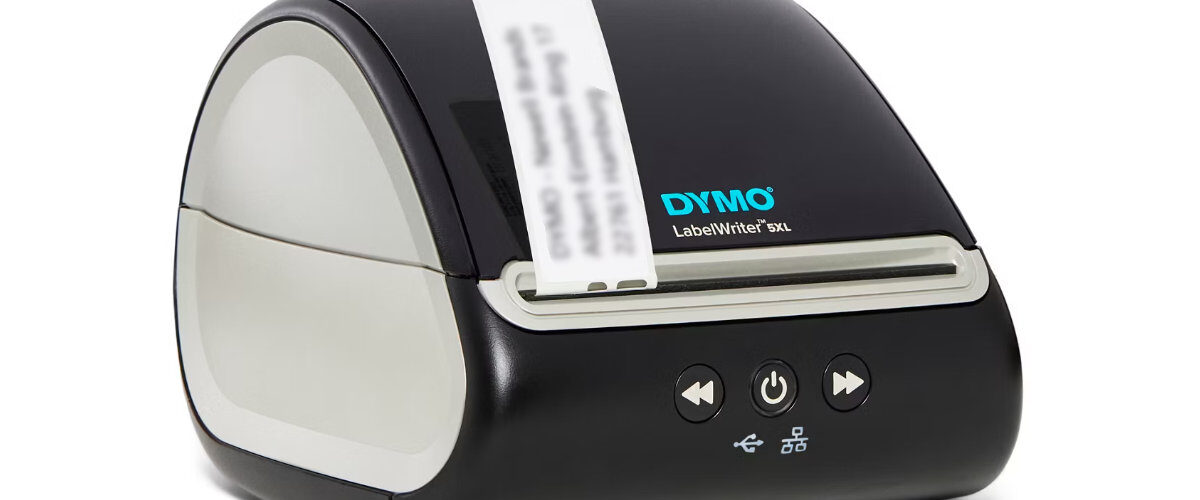
Dymo LabelWriter 4XL, Dymo LabelWriter 5XL, selected LabelWriter 450 and 550 models depending on label size, Windows, macOS, Dymo Connect, and shipping label platforms
Last updated
May 2026
Problem
You want to print shipping labels with a Dymo LabelWriter, but the label is printing too small, sideways, cropped, or on the wrong label type.
Shipping labels need the correct label size, printer selection, page setup, and layout. If any of these are wrong, the courier barcode or address may not print correctly.
Solution
Use a compatible shipping label roll, select the matching label size in Dymo Connect or your shipping platform, check the preview, then print one test label before printing your actual postage or courier label.
Step by step instructions
Check your printer model
Not every Dymo LabelWriter is ideal for full shipping labels.
For standard large shipping labels, the Dymo LabelWriter 4XL and 5XL are the most suitable models. Smaller LabelWriter models may work for smaller postage or address labels, but they may not support large courier label formats.
Load the shipping label roll
Open the printer and load the shipping labels correctly.
Check that:
- The labels feed from the bottom of the roll.
- The roll sits tightly on the spool.
- The labels feed straight into the printer.
- The label size matches what you plan to print.
Select the correct label size
In Dymo Connect or your shipping platform, choose the label size that matches the roll.
For many shipping labels, this is often a large format label, commonly around 4 x 6 inches depending on the platform and label roll.
If the size is wrong, the label may print cropped, scaled down, rotated, or split across labels.
Create or open the shipping label
If you are designing a simple shipping label in Dymo Connect, add the delivery address, return address, and any required barcode.
If you are printing from a courier, marketplace, or postage service, open the generated label file or print page.
Check the print preview
Before printing, check that the full shipping label fits on one label.
Look for:
- Address fully visible.
- Barcode fully visible.
- No cropped edges.
- Correct orientation.
- Correct printer selected.
- Correct label size selected.
If the preview is wrong, do not print yet. Fix the label size or print settings first.
Print one test label if possible
If you are not using paid postage yet, print a test label first.
This confirms that the printer, label size, and layout are correct before you use an actual courier label.
Print the shipping label
Once the preview is correct, print the shipping label.
After printing, check that:
- The barcode is clear.
- The delivery address is readable.
- The label has not been cropped.
- The label is not printed too small.
- The courier details are complete.
If the barcode is unclear, do not use the label until you have corrected the print quality or layout.
Optional methods or tools
- Use Dymo Connect for simple custom shipping labels.
- Use your courier or marketplace print page for official postage labels.
- Use PDF preview to check the label before printing.
- Use a larger LabelWriter model such as the 4XL or 5XL for full-size shipping labels.
- Use a fresh label roll if barcodes are faint or patchy.
- Download Dymo software from https://www.dymo.com/support?cfid=user-guide
Best practices or tips
- Check the label size before every shipping batch.
- Do not shrink courier labels to fit a smaller roll.
- Keep barcodes large, sharp, and uncropped.
- Print one test label after changing rolls.
- Use the correct courier label format where available.
- Avoid printing through old saved settings in a browser.
- Store shipping labels away from heat and sunlight.
- Check the final printed barcode before attaching the label.
Creating shipping labels with a Dymo LabelWriter is mainly about using the right printer model, correct label roll, and matching print size. If the printer is set to the wrong label size, even a valid shipping label can become unusable because the address or barcode may be cropped or scaled incorrectly.
For regular parcel printing, save a reliable setup and test it whenever you change label rolls, browsers, courier platforms, or computers. This helps avoid wasted labels and reduces the risk of parcels being delayed because the barcode or delivery address cannot be read properly.


