
How to install and use Dymo LabelWriter on a Mac
Applies to
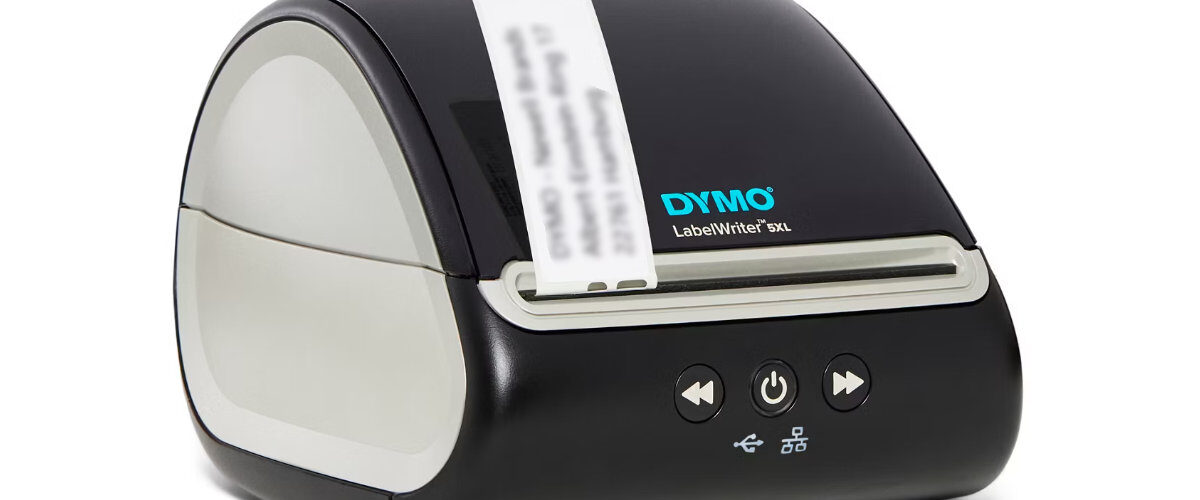
Dymo LabelWriter 450 series, Dymo LabelWriter 550 series, Dymo LabelWriter 4XL, Dymo LabelWriter 5XL, macOS, Dymo Connect, and Dymo Label Software
Last updated
May 2026
Problem
You want to use a Dymo LabelWriter printer on a Mac, but the printer is not appearing, Dymo Connect cannot find it, macOS does not list it under Printers and Scanners, or labels are not printing correctly after installation.
This can happen when the wrong Dymo software is installed, macOS permissions are blocking part of the setup, the printer was connected before the driver was ready, the USB connection is unreliable, or the wrong label size has been selected in the software.
Solution
Install the correct Dymo software for macOS, connect the Dymo LabelWriter directly to the Mac using USB, add or confirm the printer in macOS Printers and Scanners, then print a simple test label from Dymo Connect.
For most newer Mac setups, Dymo Connect for Desktop is the recommended software. Older LabelWriter models may still use Dymo Label Software, depending on the printer model and macOS version. The safest place to download the software is the official Dymo support page at https://www.dymo.com/support?cfid=user-guide
Step by step instructions
Check your Dymo LabelWriter model
Start by checking the exact model number of your printer. You can usually find this on the front of the printer, underneath the printer, or on the label at the back.
Common models include:
Dymo LabelWriter 450
Dymo LabelWriter 450 Turbo
Dymo LabelWriter 450 Twin Turbo
Dymo LabelWriter 4XL
Dymo LabelWriter 550
Dymo LabelWriter 550 Turbo
Dymo LabelWriter 5XL
This matters because different LabelWriter models may need different versions of Dymo software. Newer models are usually intended for Dymo Connect, while some older models may work better with legacy Dymo Label Software.
Check your macOS version
Before downloading the software, check which version of macOS your Mac is running.
Click the Apple menu in the top-left corner of the screen, then choose About This Mac. Make a note of the macOS version and whether you are using an Apple Silicon Mac or an Intel Mac.
This is useful because some printer software downloads are different depending on the processor type or macOS version.
Disconnect the printer before installing
If the Dymo LabelWriter is already connected to your Mac, unplug the USB cable before installing the software.
This helps prevent macOS from assigning the wrong printer driver or creating an incomplete printer entry before the official Dymo software is installed.
You can leave the power cable connected, but disconnect the USB cable until the software installation has completed.
Download the Dymo software for Mac
Open your browser and go to the official Dymo support page:
Find the software and drivers section, then download the correct Mac version for your printer.
For most current setups, choose Dymo Connect for Desktop for macOS. If you are using an older LabelWriter model or an older Mac, check whether Dymo Label Software is listed as an alternative.
Avoid downloading Dymo printer software from random driver sites, as these may be outdated, incorrect, or bundled with unwanted software.
Install Dymo Connect on macOS
Open the downloaded installer file and follow the on-screen instructions.
You may need to drag the Dymo app into the Applications folder, depending on the installer format. If macOS asks for permission to open the installer, approve it.
During installation, macOS may ask for administrator credentials. Enter the Mac administrator username and password if prompted.
If the installer asks you to allow system software, printer access, or background components, allow them. Printer drivers often need permission to communicate with hardware.
Restart the Mac after installation
After installing the software, restart the Mac.
This is not always required, but it is a good step if the printer does not appear immediately. Restarting helps macOS finish loading the printer driver and related services.
Connect the Dymo LabelWriter
Once the Mac has restarted, connect the Dymo LabelWriter directly to the Mac using USB.
If your Mac only has USB-C ports, use a reliable USB-C to USB-A adapter. During first setup, avoid using a monitor USB port, docking station, or unpowered USB hub.
Make sure the printer is powered on and that the status light is visible. If there is no light, check the power adapter and wall socket.
Add the printer in macOS Printers and Scanners
Open System Settings, then go to Printers and Scanners.
Your Dymo LabelWriter may appear automatically. If it is listed, select it and check that it is available.
If it does not appear, click Add Printer, Scanner, or Fax. Wait a few seconds to see whether macOS detects the LabelWriter. Select it from the list and add it.
If macOS gives you a choice of driver or printer software, choose the Dymo driver rather than a generic option if one is available.
Open Dymo Connect
Open Dymo Connect from the Applications folder or Launchpad.
Check whether your Dymo LabelWriter appears in the printer selection area. If it does not appear, close Dymo Connect, reopen it, and check again.
If the printer still does not appear, unplug the USB cable, wait a few seconds, reconnect it, and restart Dymo Connect.
Load the label roll correctly
Open the top cover of the Dymo LabelWriter and check that the labels are loaded correctly.
The label roll should sit firmly on the spool, with the labels feeding from the bottom of the roll. The roll should not wobble or sit loosely on the spool.
Feed the first label into the printer until the printer grips it. If the printer does not pull the label into position, press the feed button once.
If the labels are angled, loose, or rubbing against the side of the printer, remove the roll and reload it carefully.
Select the correct label size
In Dymo Connect, choose the label type that matches the physical roll installed in the printer.
This is one of the most important steps. If the software is set to the wrong label size, the printer may work but the output may be cropped, rotated, misaligned, or printed across multiple labels.
For LabelWriter 550 series printers, the software may detect compatible label rolls automatically. If the roll is not detected, remove and reload it, then restart Dymo Connect.
Create a test label
Create a simple label with basic text, such as Test Label or a short address.
Keep the first label simple. Do not test with barcodes, logos, imported contacts, shipping labels, or complex layouts until the printer is working correctly.
Preview the label before printing to make sure the text sits within the label area.
Print from Dymo Connect
Click Print and select the correct Dymo LabelWriter if more than one printer is available.
The label should feed smoothly and print clearly. Dymo LabelWriter printers use direct thermal printing, so there is no ink or toner to install.
If the label comes out blank, the label roll may be loaded the wrong way round, or the labels may not be suitable for direct thermal printing.
Remove and re-add the printer if it does not work
If the printer appears in macOS but does not print, remove it and add it again.
Go to System Settings, then Printers and Scanners. Select the Dymo LabelWriter and remove it from the list.
Restart the Mac, reconnect the printer, return to Printers and Scanners, and add it again.
This often fixes problems caused by a broken or incomplete printer entry.
Check privacy and security prompts
On newer versions of macOS, you may need to approve software or permissions after installing printer software.
Open System Settings, then Privacy and Security. Look for any message asking you to allow Dymo software, printer software, or related components.
If you see a prompt, allow it, then restart the Mac and test the printer again.
Optional methods or tools
- Use the official Dymo support page to download Mac software at https://www.dymo.com/support?cfid=user-guide
- Use System Settings, then Printers and Scanners, to confirm whether macOS can see the printer.
- Try a different USB port, USB-C adapter, or USB cable if the printer is not detected.
- Remove and re-add the LabelWriter in Printers and Scanners if it appears but does not print.
- Restart the Mac after installing the software or changing printer settings.
- Use a basic text label for testing before trying address books, shipping labels, barcodes, or imported lists.
- Check Privacy and Security settings if macOS blocks part of the Dymo installation.
- Test the printer directly connected to the Mac before using a hub, dock, or shared setup.
Best practices or tips
- Install the Dymo software before connecting the printer by USB.
- Use a direct USB connection for the first setup.
- Keep macOS updated, but check printer compatibility before major macOS upgrades.
- Choose the correct label size before printing.
- Keep the label roll tight and straight on the spool.
- Do not pull labels manually while the printer is feeding.
- Store thermal labels away from heat, sunlight, and moisture.
- Keep a note of your Dymo model and software version for future troubleshooting.
Installing a Dymo LabelWriter on a Mac is usually straightforward once the correct Dymo software is installed and the printer is added properly in macOS. Most setup problems come from using the wrong software version, connecting through a hub too early, missing a macOS permission prompt, or selecting the wrong label size in Dymo Connect.
Once the Mac recognises the LabelWriter, you can use it for address labels, file labels, name badges, barcode labels, postage labels, and other everyday labelling tasks. A clean first setup, direct USB connection, correct label roll, and simple test print will help prevent common problems such as blank labels, offline status, misaligned printing, and the printer not appearing in Dymo Connect.


